 Tavlum
Steps
- Take a photo that shows the full wall in even light.
- Open Space and choose Walls.
- Pick a surface from the Walls or Materials collection, or upload your own color or wallpaper reference.
- Generate and compare before and after.
Edit only one area
To change a single wall or an accent panel, open Local Edit and paint just that area. Check corners and nearby furniture afterwards, because edges can still shift.
Check color before you buy paint
Light, shadows, your screen and the AI model all shift color. Always test a real sample on the wall.
Flooring
The same Space mode has a Floor option. For materials, swatches and limits, see the floor visualizer.
A real Tavlum result
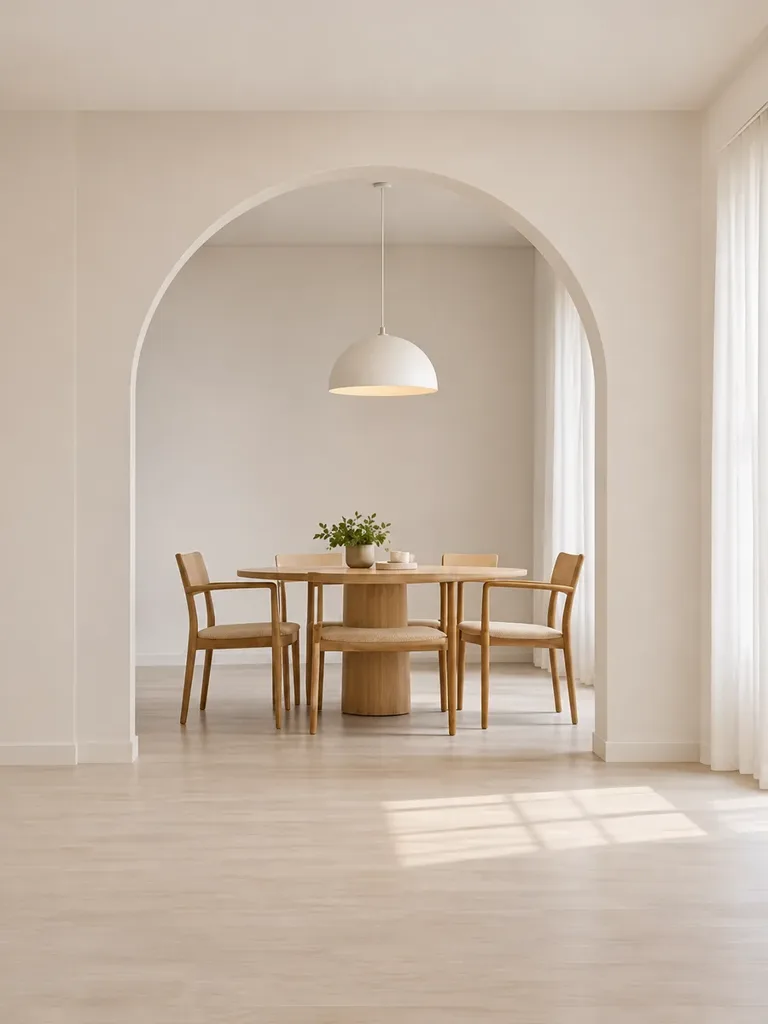
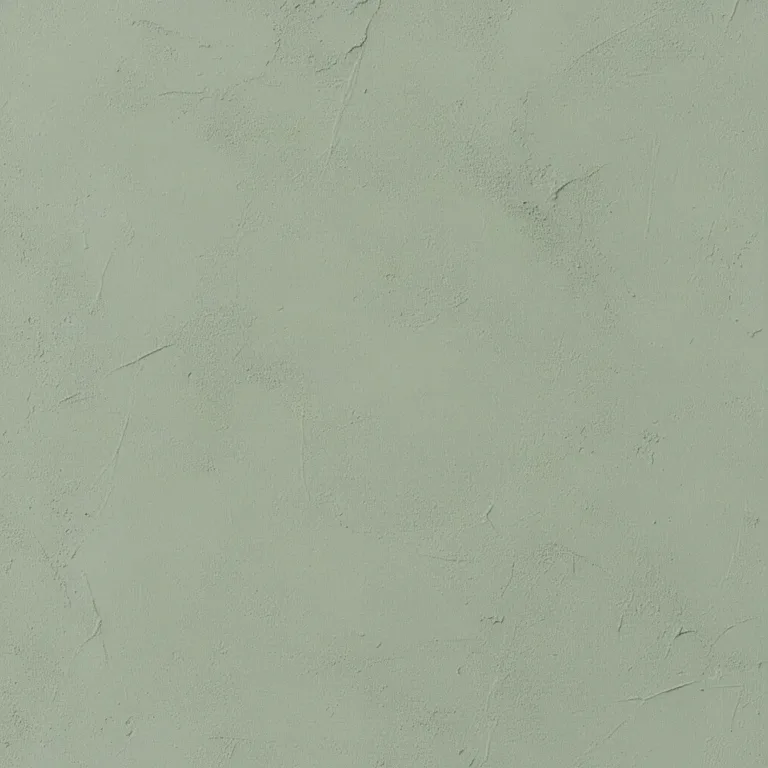
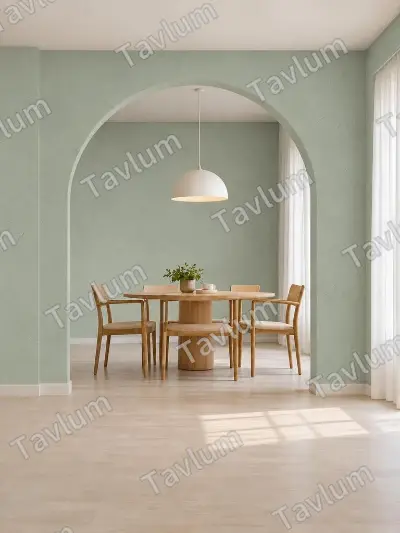
The walls and arch turned muted sage while the ceiling, floor, table, chairs, pendant and curtains stayed. Screen color is approximate, so test a real paint sample on your wall.
Common questions
Can I use a specific paint chip?
You can upload a reference, but the preview will not match a paint code exactly.
Can I change only one wall?
Use Local Edit to paint the exact area, or describe the change in Free Edit.
AI previews are illustrative and may alter details. They do not determine size or fit.
Try it in the Studio