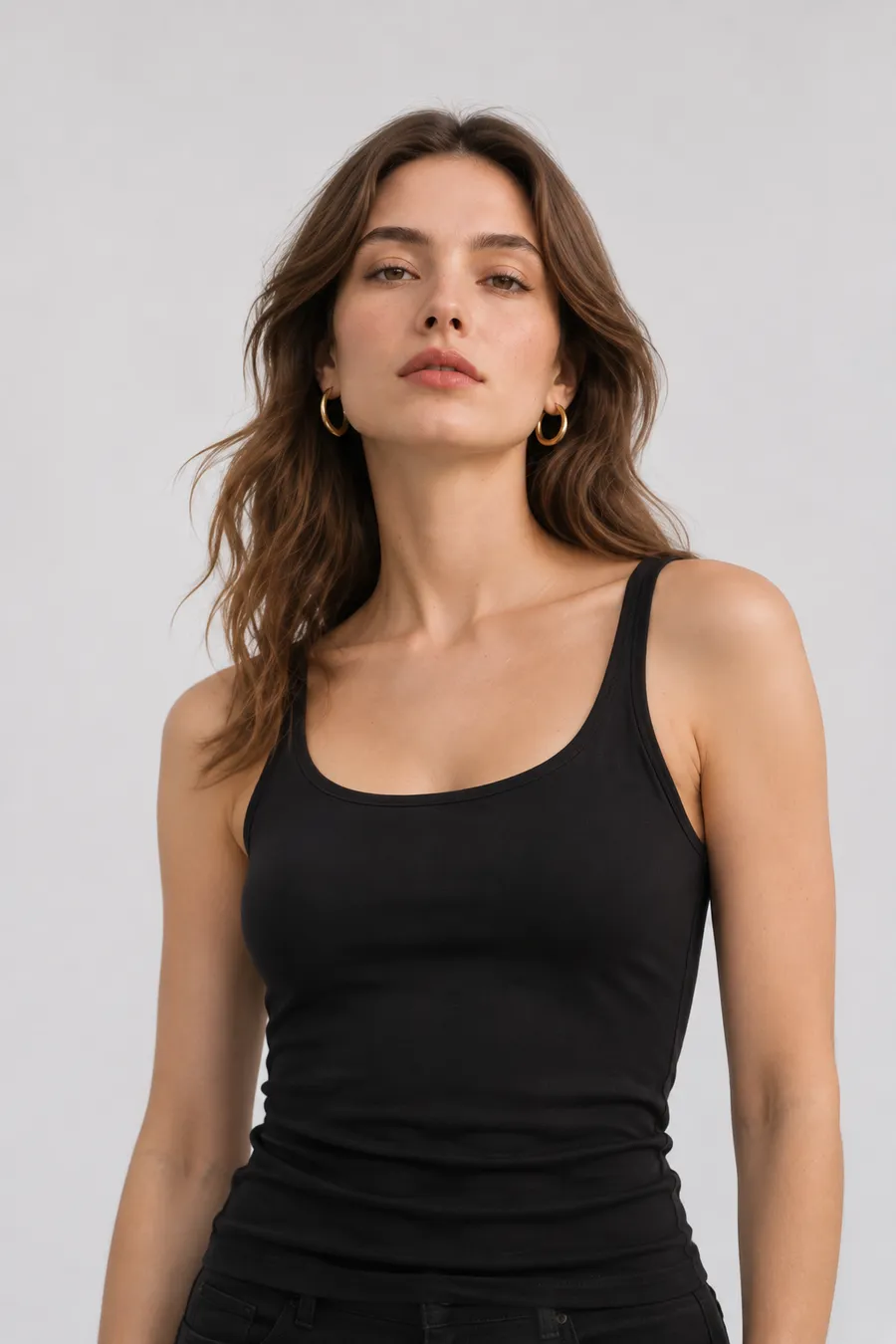
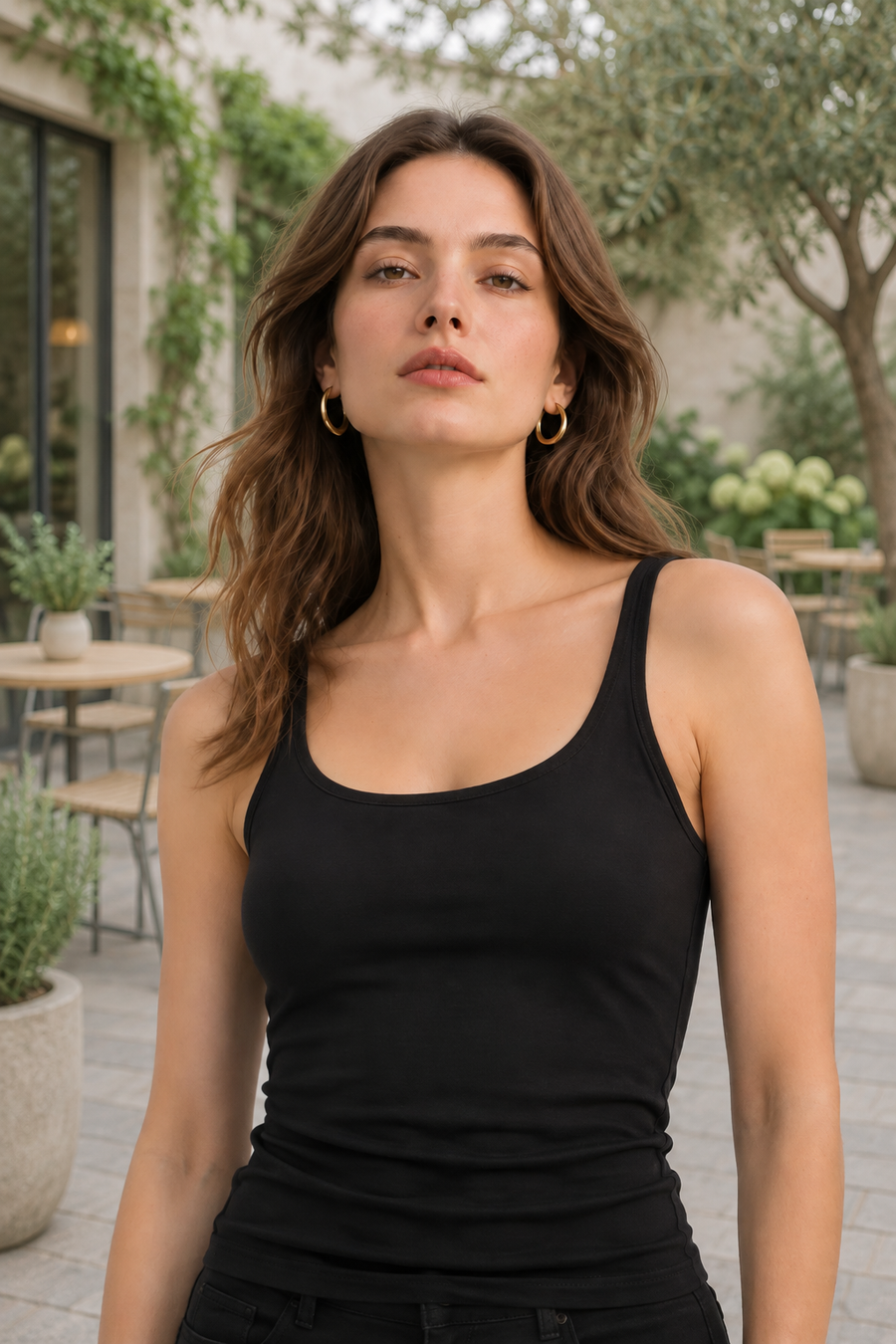
Tavlum
’s AI background changer replaces the setting behind a person or product while aiming to keep your subject, clothing, and lighting consistent. Pick a one-tap preset in Free Edit—from pure white e-commerce backdrops and soft gray studio light to beach sunsets and street cafes—or write your own description.
What you can change
- Pure white (#FFFFFF) and soft gray e-commerce product backdrops
- Daylight loft, minimalist studio, and marble podium scenes
- Outdoor scenes such as beach sunset, street cafe, and city night bokeh
- Custom backgrounds guided by your text prompt and up to 3 reference images
How it works
- Upload a clear photo of your person or product in Free Edit.
- Tap a background preset chip (such as Pure white studio or Beach sunset) or describe your scene.
- Generate the preview for 1 credit and drag the slider to compare with your original photo.
- Save the result, or on Pro and Business plans batch-process many product photos with the same backdrop.
Tips for the best result
- Use a photo where the subject’s edges are clearly separated from the old background.
- Match the lighting direction of your preset to the light on your subject.
- For catalog listings, choose Pure white studio or Soft gray studio.
- If you want a transparent PNG instead of a new scene, use the Background Remover tool.
Good for
- Creating clean white-background product photos for online stores
- Putting a model or outfit photo into a street or studio setting
- Refreshing a portrait or profile picture background
- Testing multiple scene backdrops from the same source photo
What to expect
AI background changes regenerate the surrounding scene and can subtly shift fine hair edges or shadows. Always compare the result with your original photo.
Each standard photo generation uses 1 credit. See plans and credits.
Background editing guide · Remove background cutout · Remove objects · View examples