Tavlum
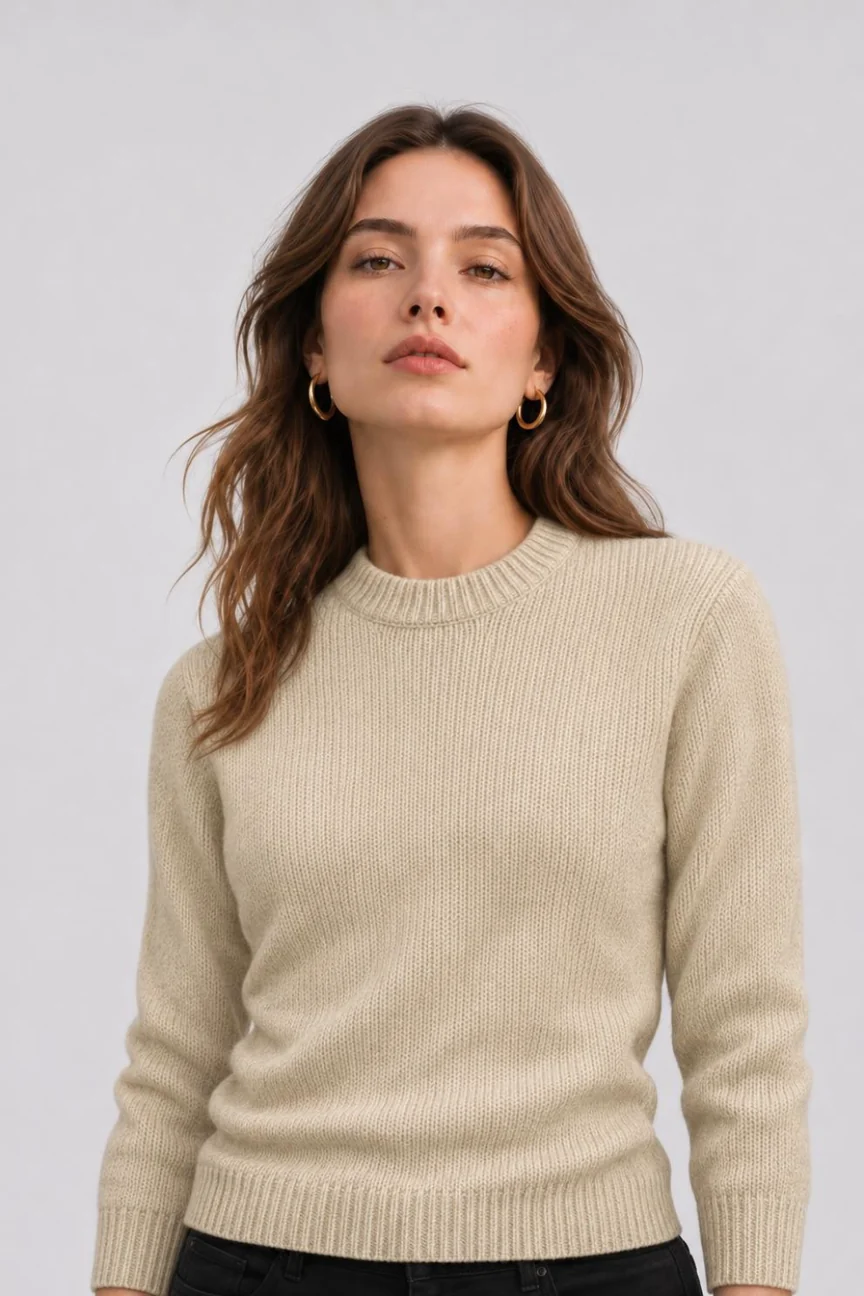
An AI clothes changer replaces what someone is wearing in a photo and aims to keep the rest of the picture as it was. In Tavlum you can swap a single garment, restyle a whole outfit, or change just one part, such as the sleeves or a collar, by painting over it in Local Edit. It works on your own photos, on product shots and on model photos.
What you can change
- Swap a top, dress, jacket, pants or skirt for a garment you upload
- Restyle a complete outfit by connecting up to 4 items
- Change the color or pattern of an item with a short text instruction
- Edit one region only with Local Edit and leave everything else untouched
How it works
- Upload a clear photo with the clothing area visible.
- Pick a garment from the catalog or upload your own photo of one.
- Optionally add a short instruction, such as “tuck the shirt in” or “make it navy”.
- Generate and drag the slider to compare with the original.
A real Tavlum result
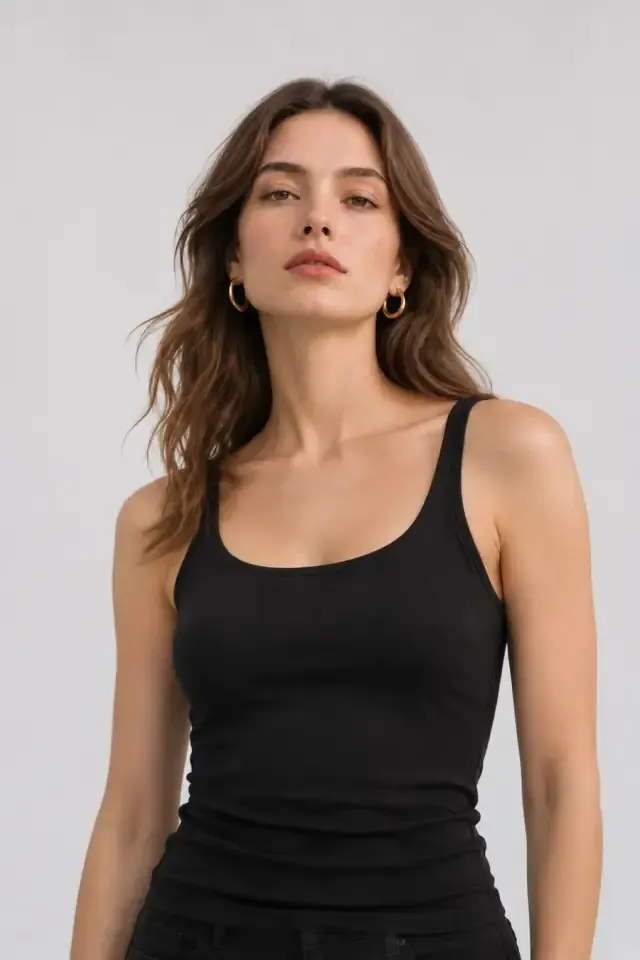
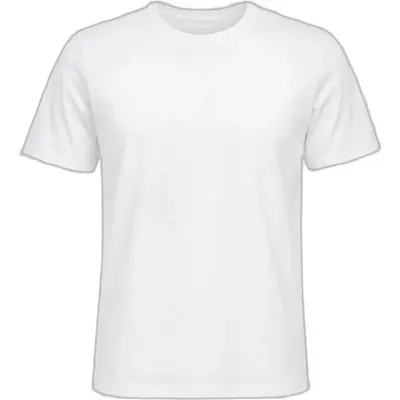
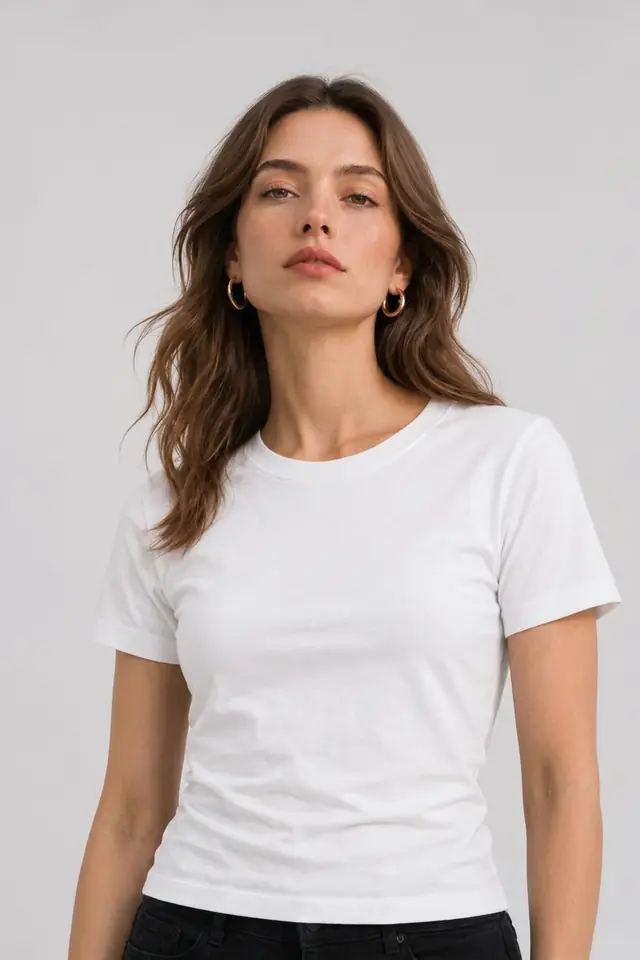
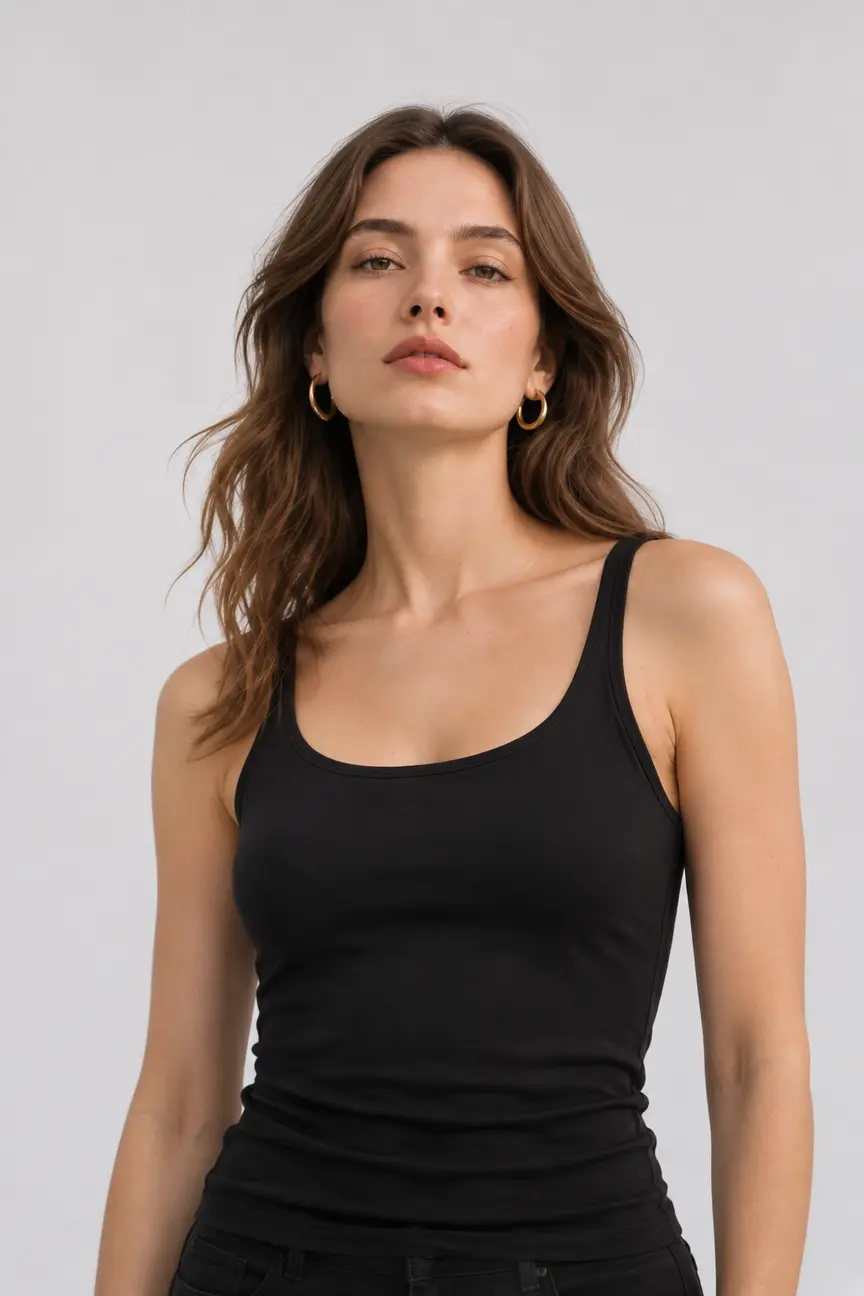
The T-shirt replaced the tank top with a complete neckline, sleeves and hem. Face, earrings, pose and background stay close to the original, but hair strands over the shoulders were redrawn, so this is not a pixel-for-pixel copy.
Tips for the best result
- Use a photo where hands, bags or hair do not cover the clothing.
- Garment photos work best as a flat lay or on a mannequin, with one item per image.
- Keep the lighting similar between your photo and the garment photo.
- For many photos at once, use batch mode on Pro (20 images per run) or a Business plan (50 or 100).
Good for
- Trying a new outfit on yourself before shopping
- Showing a product on a model photo for a small brand
- Fixing the outfit in a photo you otherwise like
- Testing colors for a uniform or team outfit
What to expect
AI previews may alter folds, patterns, small text and logos. Check the product listing for fabric and sizing, and only edit photos you own or have permission to use.
Each standard photo generation uses 1 credit. See plans and credits.
Keep face details consistent · Photo try-on · Edit one area · Plans and credits · View examples