Tavlum
Free Edit is Tavlum’s text-guided editor. It reads a short instruction and up to 3 reference images, then redraws the photo with the change while trying to keep the people, room and light you started with. It is useful when the change is easier to say than to paint.
What you can change
- Add furniture, plants, lamps, props or accessories to a photo
- Combine a text instruction with up to 3 reference items
- Place items at a spot you choose, or use automatic placement
- Start from one-tap ideas such as a clean white studio backdrop
How it works
- Open Free Edit and upload your photo.
- Describe the change, add up to 3 reference items, or both.
- Choose where the items go, or keep automatic placement.
- Generate for 1 credit and compare with your original photo.
A real Tavlum result
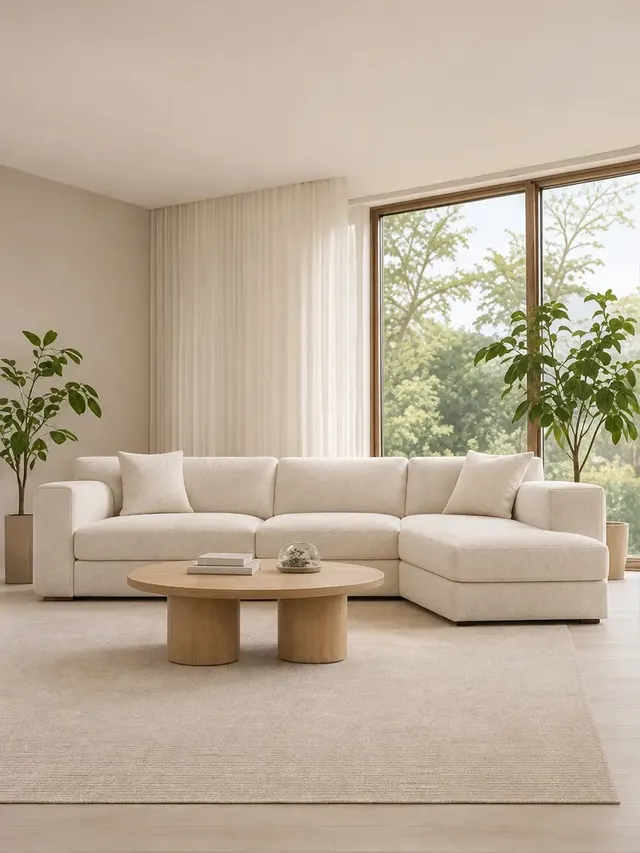
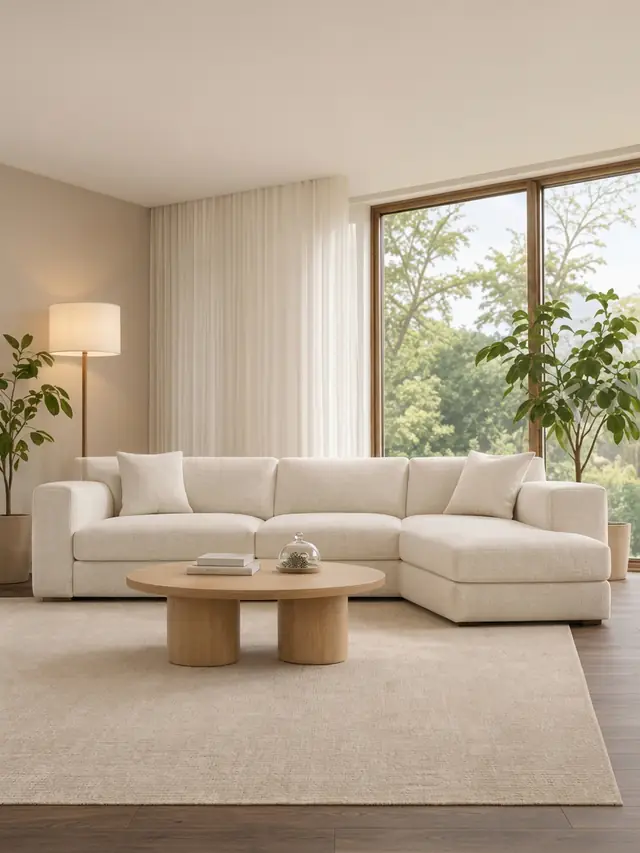
A floor lamp with a warm glow appeared beside the sofa. Its base is hidden behind the sofa, and nearby plant leaves and wall were partly redrawn.
Tips for the best result
- Name the object, where it goes and what should stay, for example "keep the sofa and rug unchanged".
- Change one thing per generation so you can see what each instruction did.
- Use a reference image when the exact product matters more than the idea.
- If only one small area should change, Local Edit gives you more control.
Good for
- Seeing a lamp, plant or artwork in a room before you buy it
- Adding props to a product or lifestyle photo
- Trying an accessory on an outfit photo
- Sketching an idea for a client or partner
What to expect
Free Edit redraws the photo, so details away from the change can shift and the size of added objects is approximate. Compare with your original and measure real items before you order.
Each standard photo generation uses 1 credit. See plans and credits.
Background changer · Edit one area · Guide: edit one part of a photo · View examples