Tavlum
Virtual shoe try-on swaps the shoes in your photo for a pair you are considering, so you can see them with your real outfit and proportions. Upload a photo where your feet are visible, add an image of the shoe, and Tavlum redraws only the footwear.
What you can change
- Sneakers and trainers
- Boots and ankle boots
- Heels, flats and sandals
- Shoes as part of a full outfit with up to 4 items
How it works
- Upload a full-body or lower-body photo with both feet clearly visible.
- Select Shoes (or paint over your shoes in Local Edit) and add a footwear photo.
- Generate and compare the shoe shape and color against your original.
- Try other colorways from the same photo to compare them.
A real Tavlum result
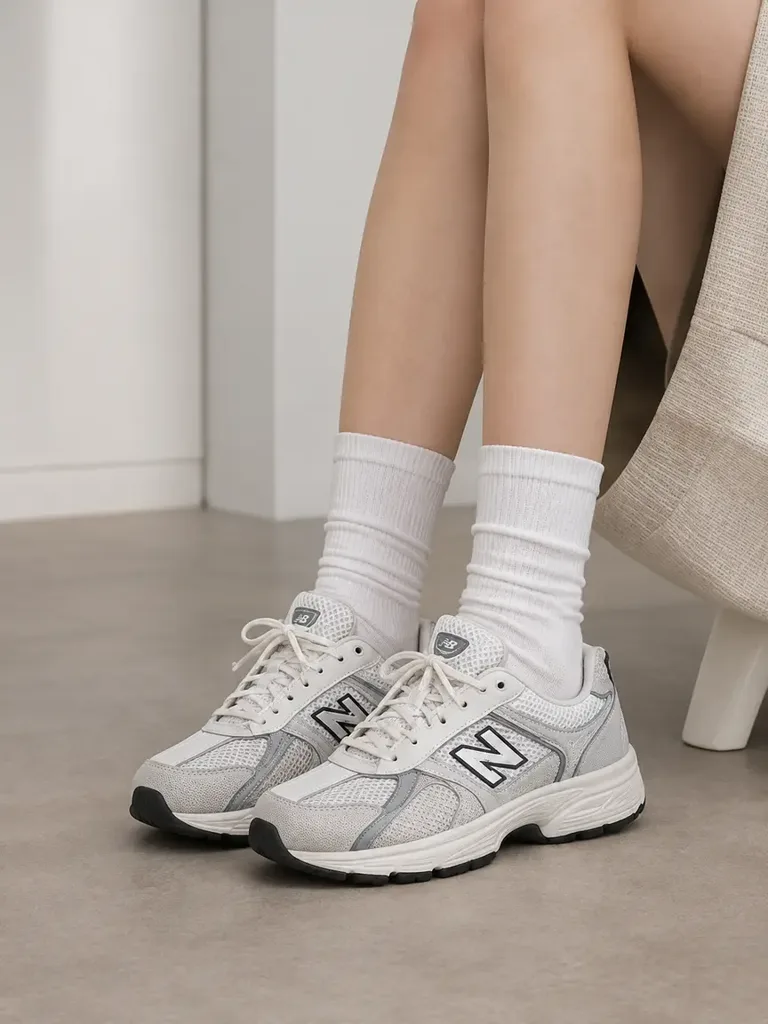
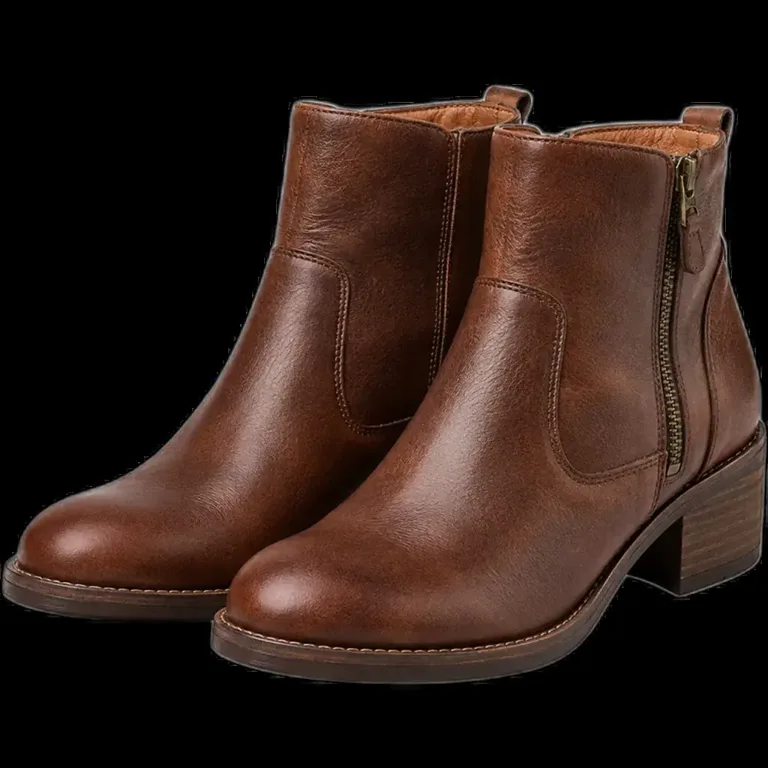
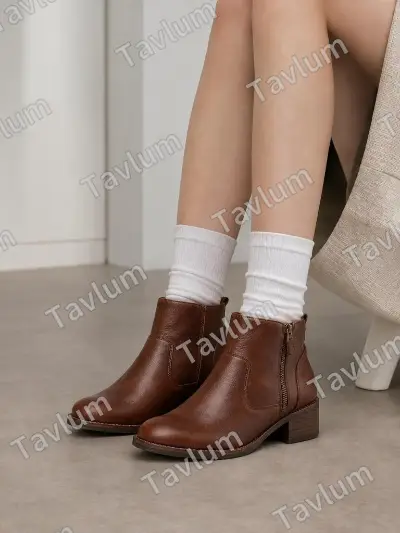
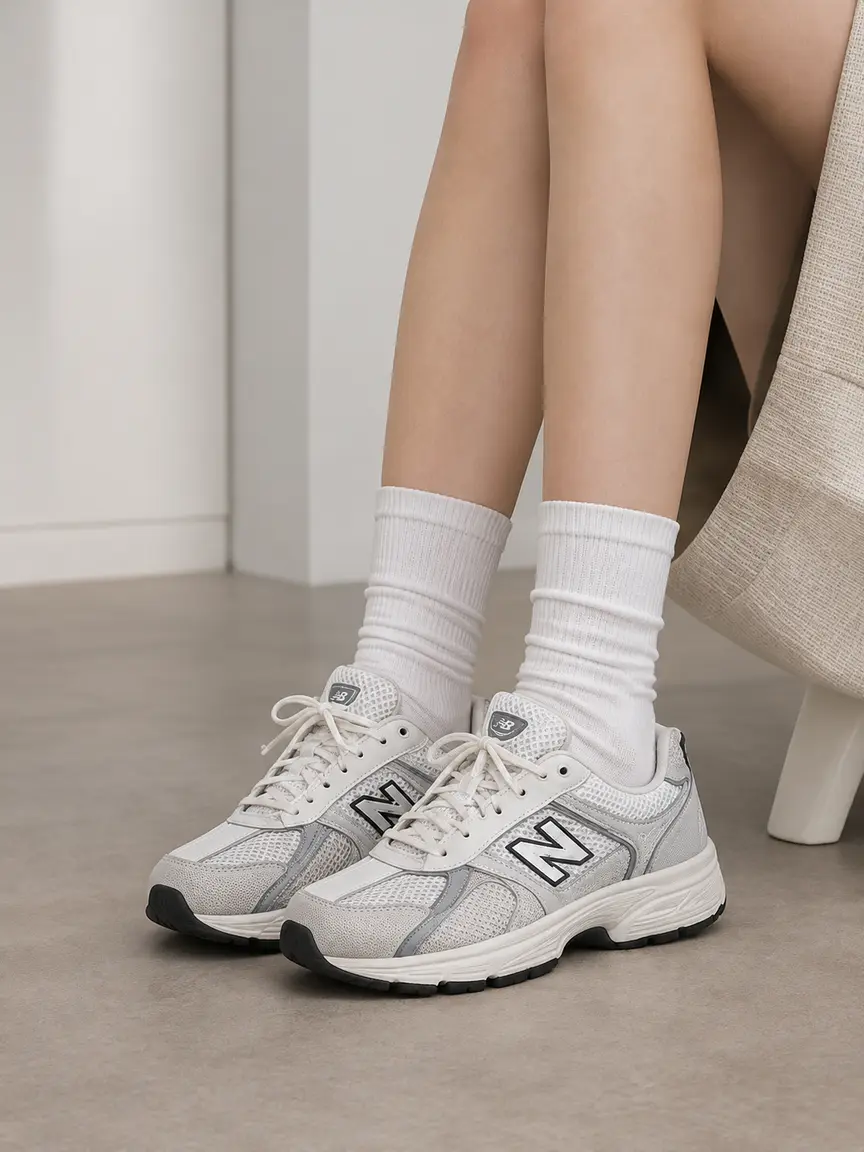
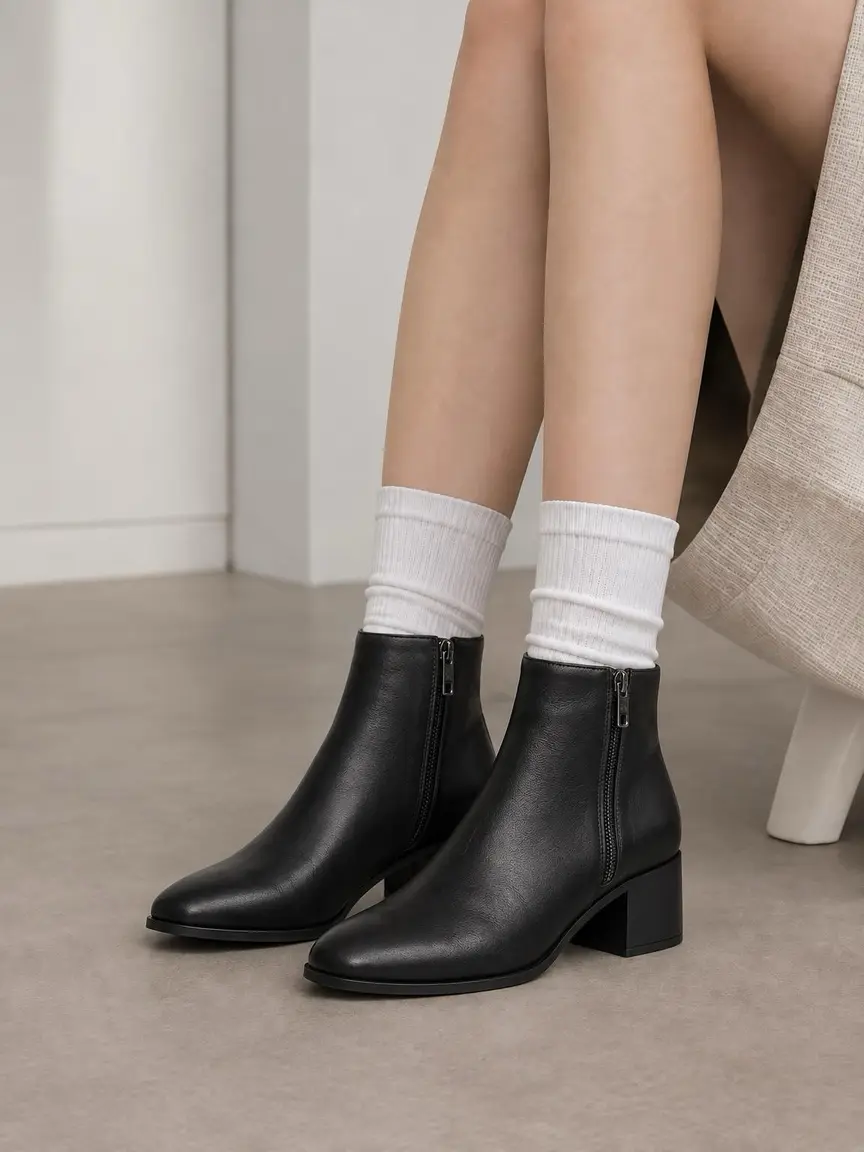
The running shoes became brown ankle boots with a side zip and block heel, and the socks, legs, chair and floor stayed. The boots sit naturally on the feet, but their size is drawn, not measured, so check the brand size chart.
Tips for the best result
- Keep both feet in the frame and not cropped at the edge.
- A front or three-quarter view works best.
- Make sure trousers or a long hem do not cover most of the shoe.
- Pick a shoe photo taken from an angle similar to your photo.
Good for
- Checking whether a pair works with an outfit
- Comparing colorways before you order
- Seeing the proportions of a heel or platform
- Choosing shoes for a wedding or event
What to expect
Cropped feet or long hems can affect the preview. Always check the brand size chart for fit.
Each standard photo generation uses 1 credit. See plans and credits.
Photo try-on · Full outfit guide · Useful source photos · View examples