Tavlum
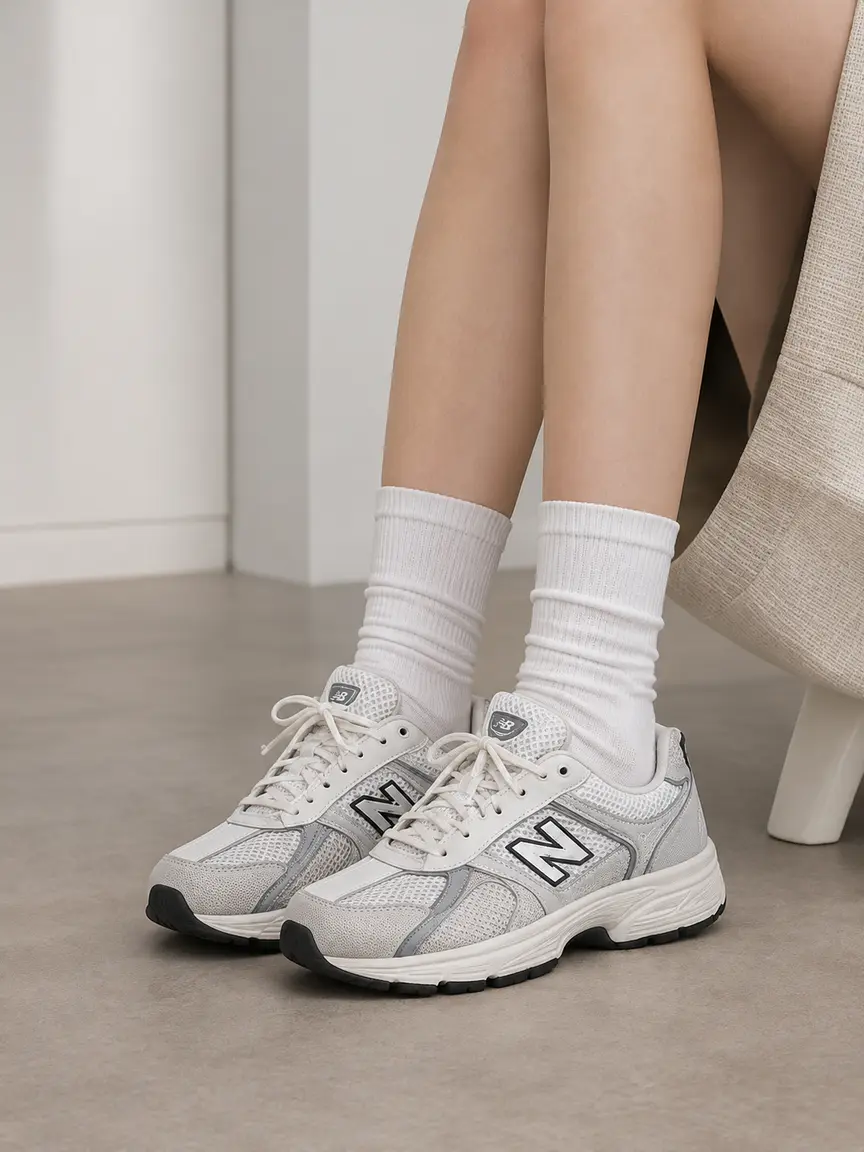
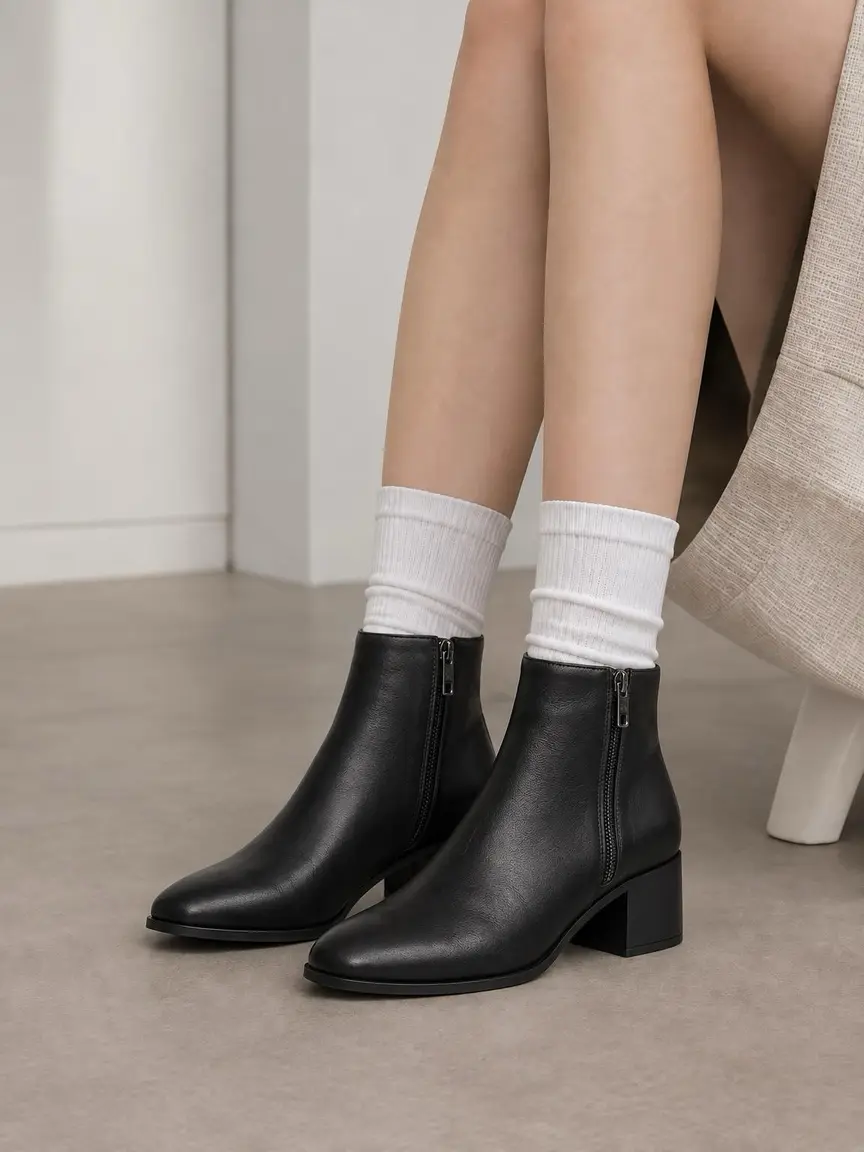
 Local Edit is an AI photo editor for one area at a time. Instead of regenerating the whole picture, you mark a region and say what it should become: a pair of shoes from the library, a material swatch, a short phrase such as "a red leather sofa", or nothing at all when you want it erased.
What you can change
- Replace one area with a library item, your own uploaded item or a short description
- Erase objects, marks or people from the painted area and fill it in from the surroundings
- Mark the area with a brush (adjustable size) or with a box
- Undo strokes one by one, or clear the mask and start again
How it works
- Open Local Edit and upload your photo.
- Paint or box the area you want to change.
- Choose Replace and pick an item or describe the change, or choose Erase.
- Generate for 1 credit and drag the slider to compare with the original.
Tips for the best result
- Paint slightly past the edge of the object so the new content blends in.
- Keep the mark to one object; several separate areas are harder to blend.
- For a new background, use the background changer instead of painting around the subject.
- Check edges and nearby details after each edit, because they can still shift.
Good for
- Swapping shoes, a bag or a jacket without touching the rest of an outfit photo
- Removing a passer-by, a cable or a logo from a picture
- Trying a new material on one piece of furniture
- Fixing a single detail in a product photo
What to expect
Local Edit regenerates the marked area and blends it with its surroundings, so nearby pixels can change slightly. It does not measure size, and fine text or logos inside the mark may be redrawn.
Each standard photo generation uses 1 credit. See plans and credits.
Guide: edit one part of a photo · Guide: remove objects · Add objects with text · View examples