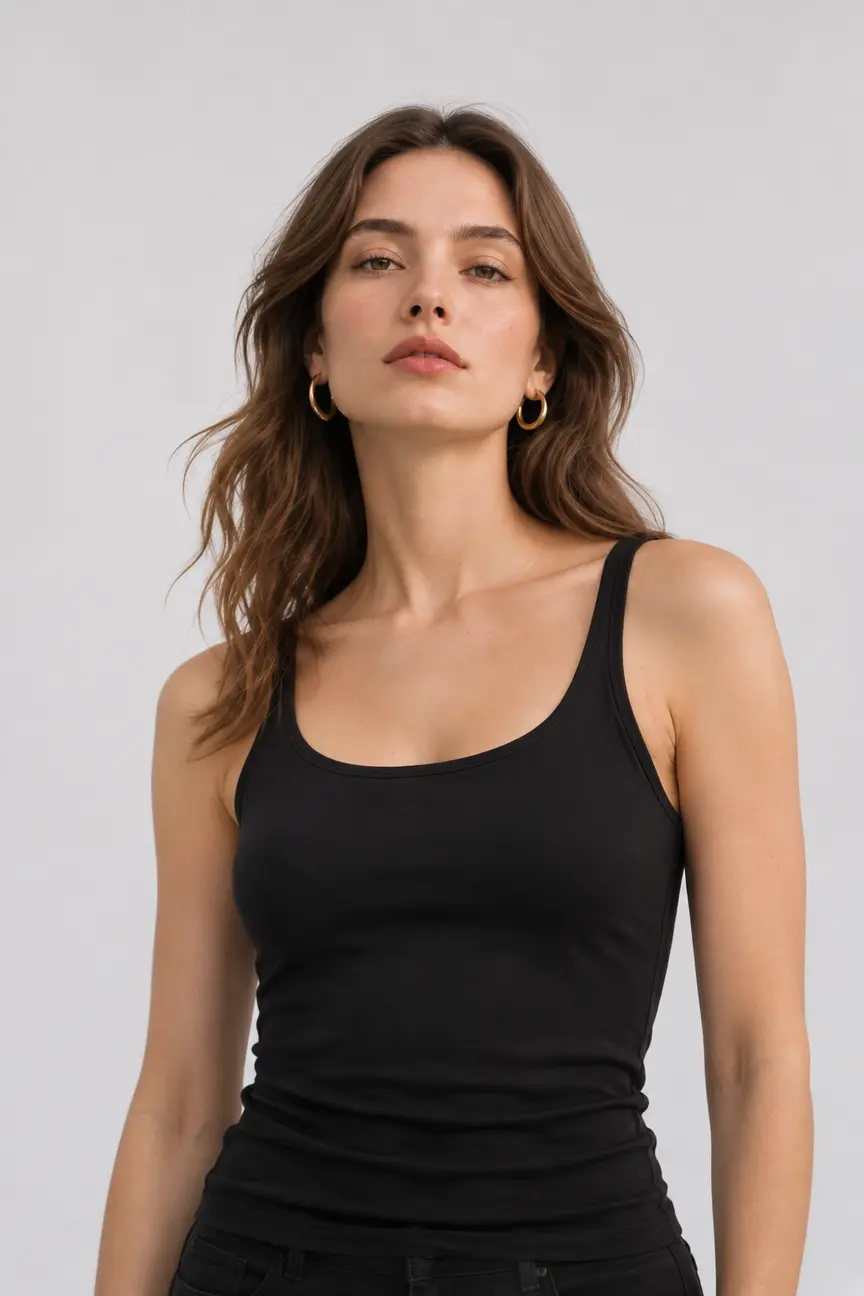
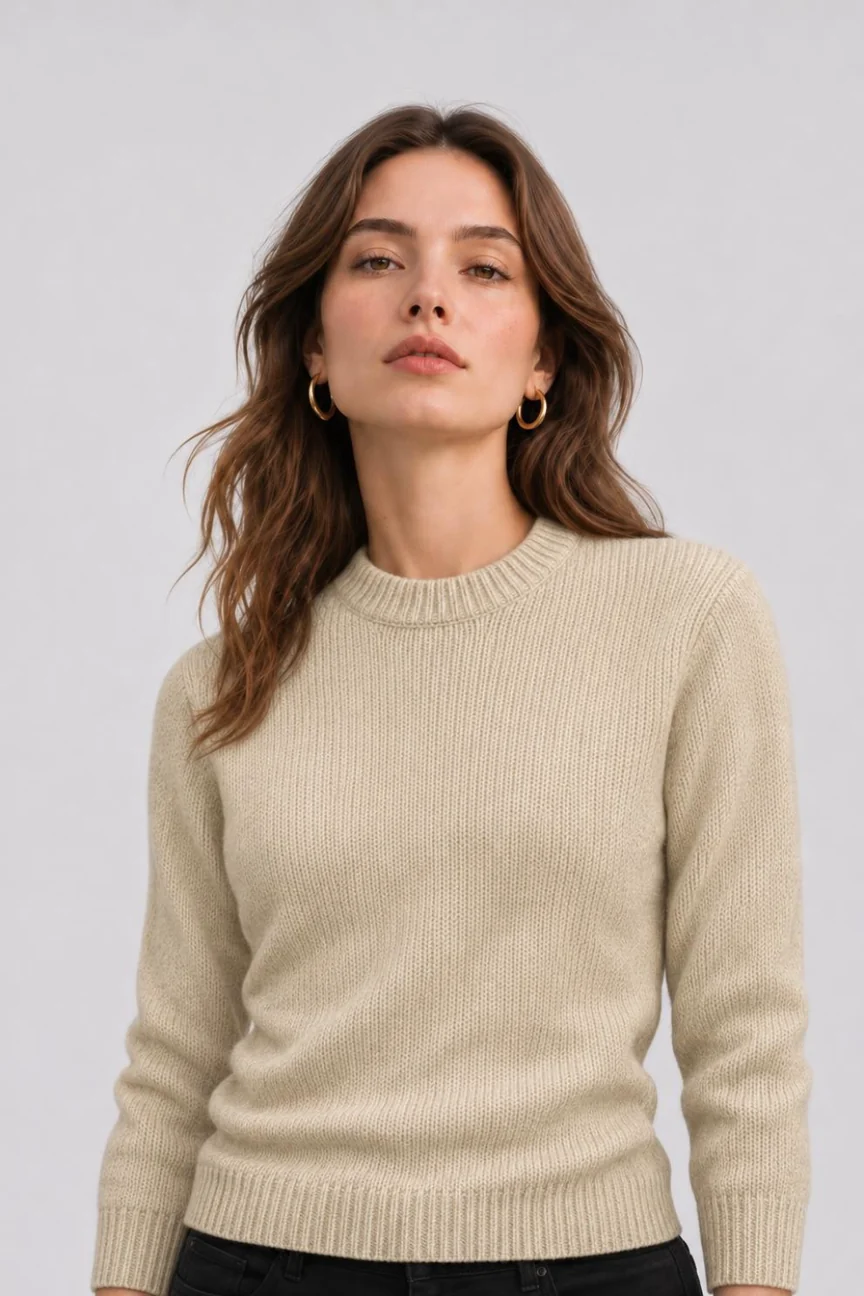
Tavlum
’s virtual try-on puts a product onto your own photo instead of a stock model. Upload a picture of yourself, add an image of the item—a screenshot from an online store works—and the AI redraws that area so you can see the color, length and style on your body. Your photo guides the face, pose and background, and a slider lets you compare the result with your original to check what changed.
Your photo, your clothing reference
Tavlum uses two images. Your photo sets the person, pose, light and background. The clothing reference, a product photo, a store screenshot or a catalog item, sets the garment that is drawn onto you.
What you can change
- Tops, jackets, dresses, pants and skirts
- Full outfits: connect up to 4 items, one per category, to a single photo
- Shoes, glasses, hats and jewelry
- Hairstyles and hair colors
How it works
- Upload a sharp, well-lit photo that shows the body area you want to dress.
- Add the item: upload a product photo or screenshot, or pick one from the catalog.
- Generate the preview. Each standard photo uses 1 credit, and failed jobs are refunded automatically.
- Drag the slider to compare with your original, then save it or branch a new edit from the result.
A real Tavlum result
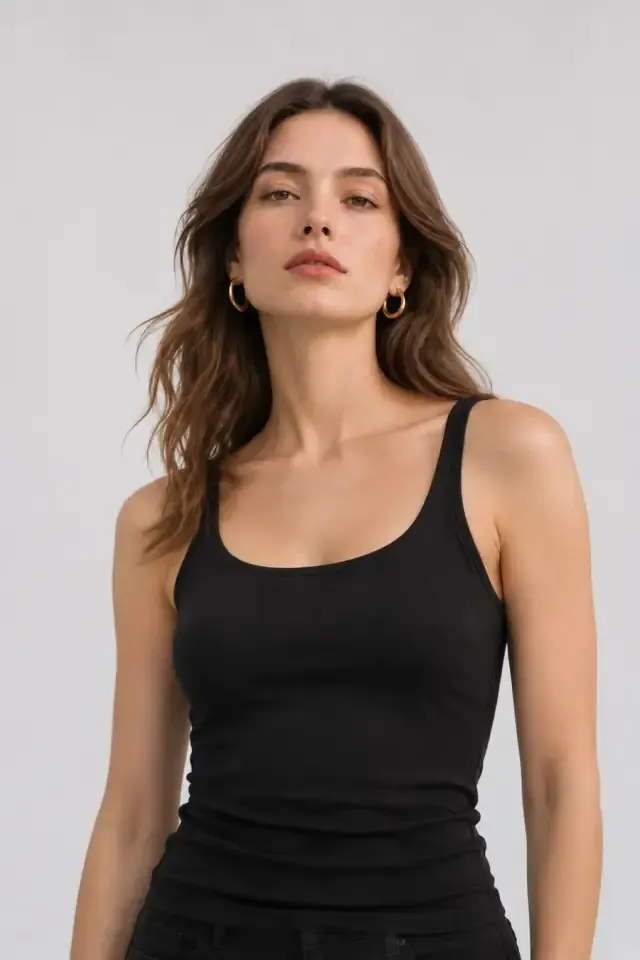
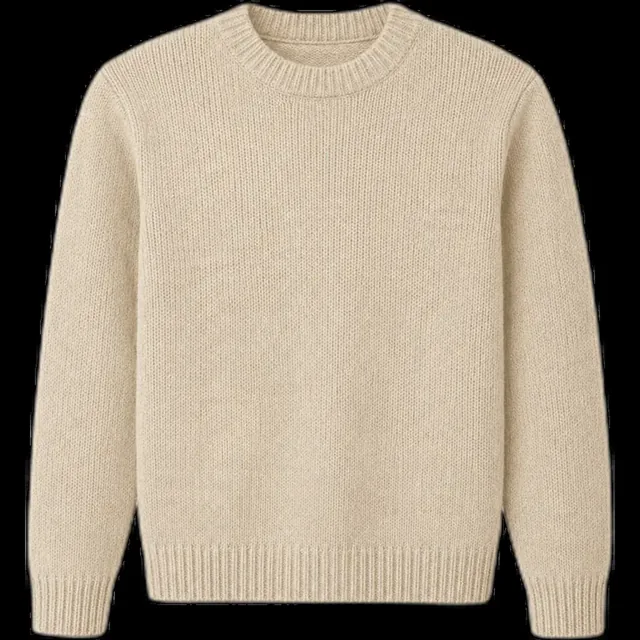
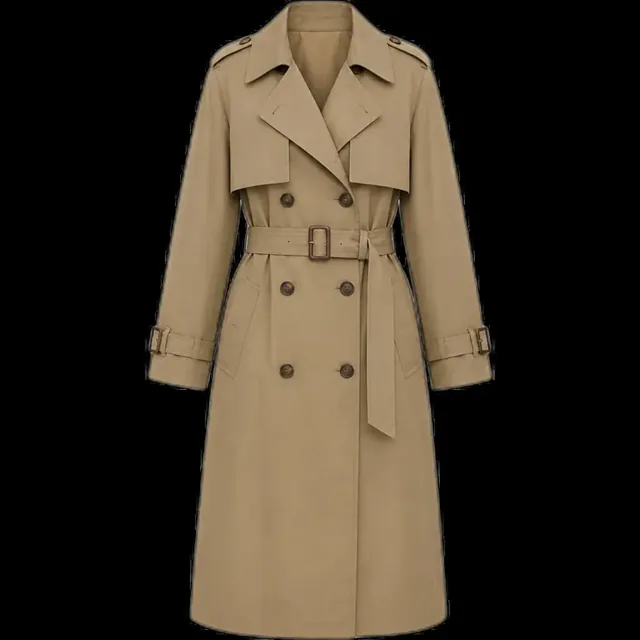
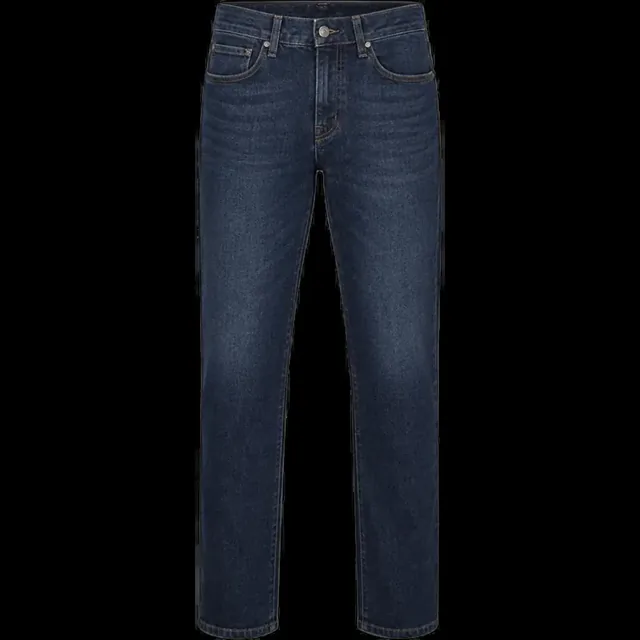
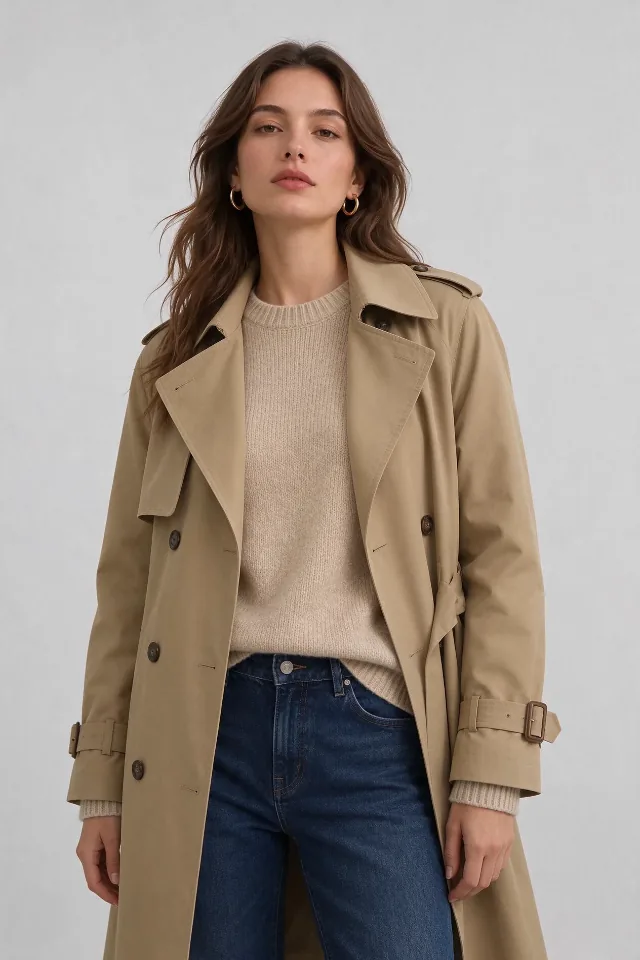
All three items appear together in one result: the knit sweater, the trench coat worn open over it and the blue jeans. Face, earrings and background stay close to the original. The arms and shoulders were redrawn under the coat, and a first run whose prompt named black wide-leg pants followed the text instead of the jeans image, so describe items the way their pictures look.
Tips for the best result
- Face the camera with your arms slightly away from your body.
- Use even daylight and avoid strong shadows or mirror glare.
- Show the whole area you are changing: full body for outfits and shoes, head and shoulders for glasses and hats.
- Choose product images where the item is clearly visible on a plain background.
Good for
- Checking a color or cut before you order online
- Planning an outfit for an event
- Comparing two versions of the same item side by side
- Sending a preview to a friend before you buy
Photo try-on or live try-on?
Photo try-on creates a still image for 1 credit and is best for careful side-by-side comparisons. Live try-on shows the item on your camera for 15 seconds (4 credits) or 30 seconds (8 credits) on supported devices, which helps you see movement and different angles.
What to expect
Virtual try-on previews style and color only. It does not measure your body or predict how a size will fit, and the AI may change small details such as prints, logos or folds. Check the brand size chart and your measurements before you order.
Each standard photo generation uses 1 credit. See plans and credits.
How to take a useful try-on photo · AI clothes changer · Build a full outfit · Plans and credits · View examples