 Tavlum
A floor visualizer replaces the floor in a room photo so you can judge color, pattern and tone against your walls and furniture. Tavlum works from your own photo and any flooring sample: a manufacturer swatch, a store photo or a picture of a sample lying on your floor.
What you can change
- Hardwood and engineered wood
- Tile, stone and terrazzo
- Vinyl and laminate
- Carpet and large rugs
How it works
- Take a room photo showing as much open floor as possible.
- Select Floor in Space and choose or upload a flooring swatch.
- Generate and compare the new floor with your original photo.
- Try more swatches from the same photo to narrow down your shortlist.
A real Tavlum result

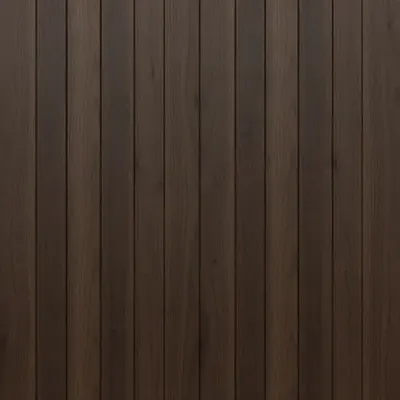

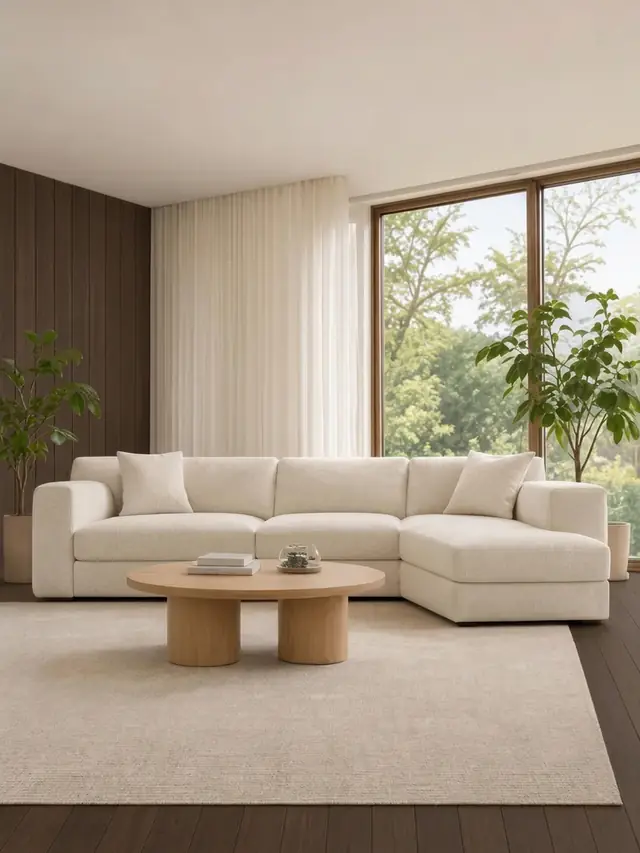
The exposed floor became dark walnut planks while the light left wall, sofa, rug and lighting stayed. An earlier run of the same edit also turned the left wall into dark wood paneling; that was fixed on 16 November 2026, but check walls and edges in your own result.
Tips for the best result
- Show as much open floor as you can and move loose items out of the way.
- Avoid strong stripes of direct sunlight across the floor.
- Photograph the sample flat, in even light and without glare.
- Hold the camera level so the perspective is easy to follow.
Good for
- Narrowing down samples before you order them
- Checking a floor tone against cabinets and walls
- Comparing plank colors or tile patterns
- Showing a contractor or landlord what you have in mind
What to expect
Screen lighting shifts color and texture. Always check a physical sample and measure your room before ordering.
Each standard photo generation uses 1 credit. See plans and credits.
Wall and floor editing guide · AI room design · Edit one area · View examples