 Tavlum
Why preview wedding dress styles on your own photo?
Wedding dress shopping usually starts with a long list of silhouettes and necklines and only a few fitting appointments. Seeing the main styles on your own photo first helps you narrow the list: you can compare a lace A-line, a minimal satin slip and an off-the-shoulder gown side by side and decide which shapes are worth trying on in a boutique.
Tavlum redraws the clothing in your photo and aims to keep your face, hair, skin, pose and background unchanged, so each preview shows the dress, not a different person.
What we tested
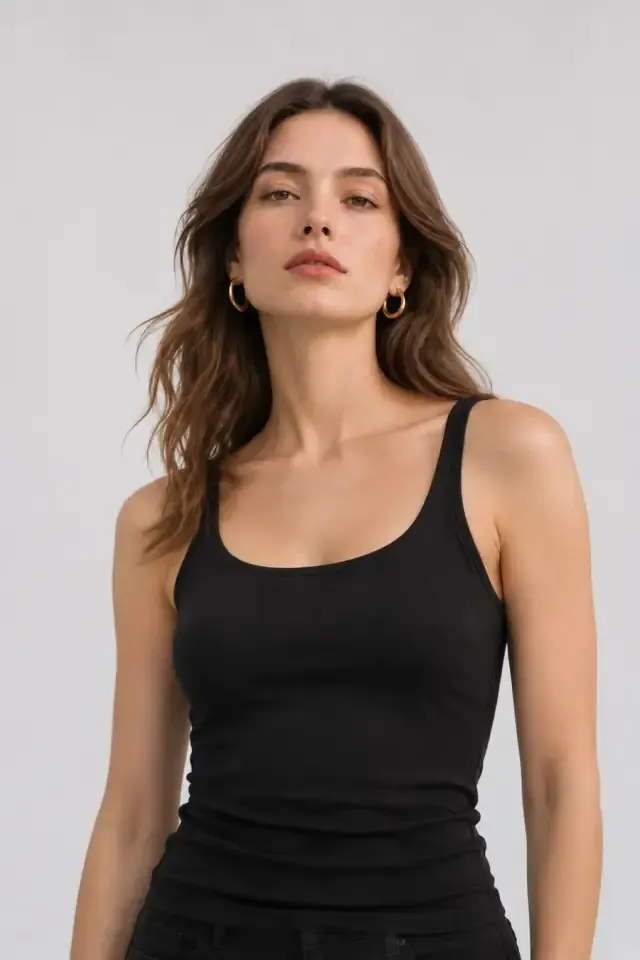
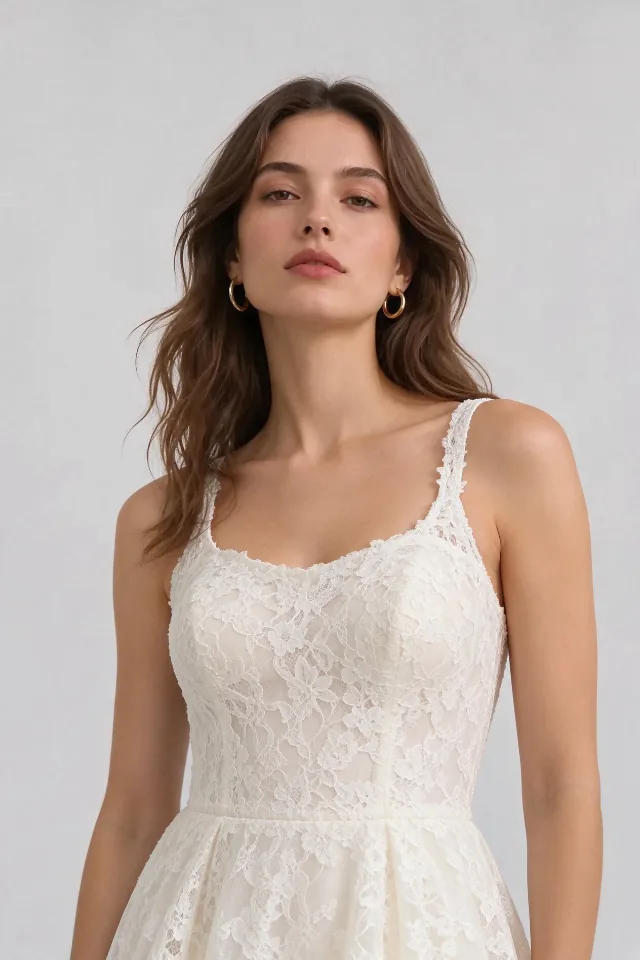
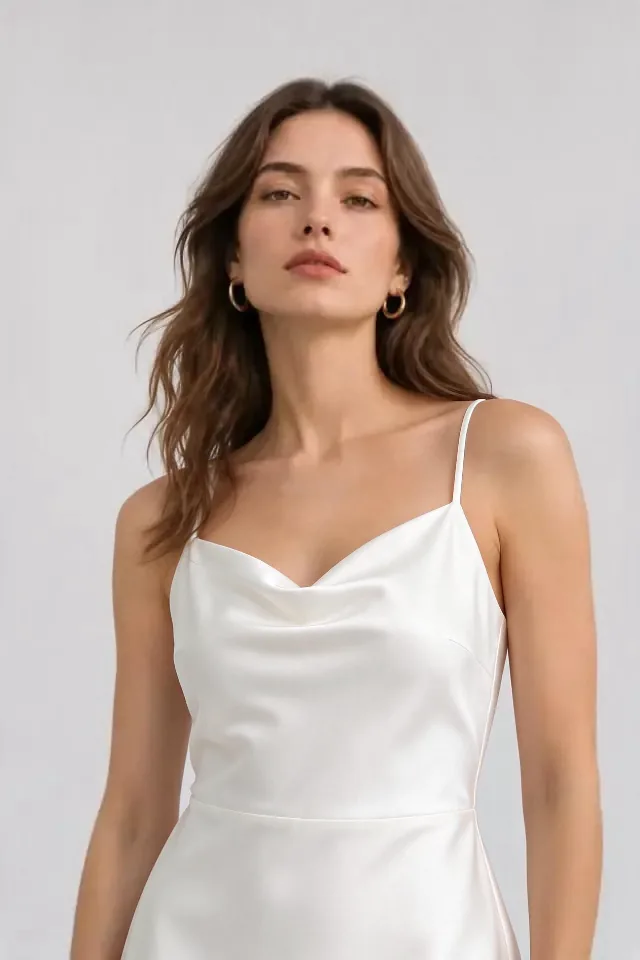
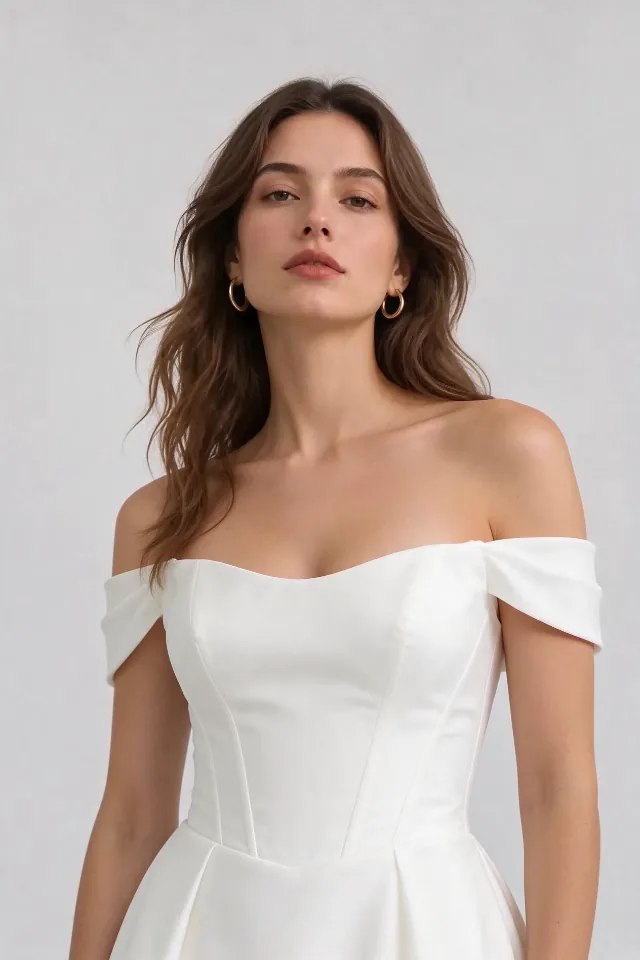
We generated three wedding dress styles on the same portrait on 27 November 2026. Each used Tavlum's Free Edit with a text description and no reference image, cost 1 credit and took 14 to 18 seconds to generate.
- Ivory lace A-line with thin straps and a fitted bodice.
- Minimal white satin slip with a cowl neckline.
- Off-the-shoulder gown with a structured corset bodice.
In all three results the dress replaced the black tank top, and the face, hair, earrings and grey background stayed close to the original. The photo was framed from the head to the hips, so only the bodice and the start of the skirt are visible. If you want to judge the full skirt and train, use a full-length photo. A photo taken in the shoes you plan to wear also helps you judge the hem length.
How to try on a wedding dress with your photo
- Upload a clear photo of yourself. A full-length photo shows the whole dress; a half-length photo is enough to compare necklines and bodices. Stand straight with your arms slightly away from your body.
- Describe the dress or add a reference image. Name the silhouette (A-line, sheath, ball gown, mermaid), the neckline (sweetheart, V-neck, off-the-shoulder, square), the fabric (lace, satin, crepe, tulle) and the color (ivory, white, blush). A designer photo you have the right to use helps match a specific dress.
- Generate and compare. Drag the slider to see exactly what changed. Save the styles you like.
- Compare three or four looks. Keep everything else the same and change one detail at a time, such as the neckline, so you can see what that detail does.
- Take the shortlist to your fittings. Showing a consultant the previews you liked saves time and helps them pull similar dresses.
Choosing a photo
- Wear something fitted. A bulky coat or loose sweater hides your shape and makes the dress harder to place.
- Use a plain background and even light. White and ivory fabrics lose detail against bright, busy backgrounds or harsh shadows.
- Show your shoulders and neckline if you want to compare necklines. Hair over the shoulders can hide straps and off-the-shoulder lines.
- Stand facing the camera. A side angle can twist the bodice.
Reading the result
Look at the neckline, the waistline and how the bodice sits on your shoulders. Those are the parts a preview shows well. Lace patterns, beading and fine fabric texture are redrawn by the AI, so they will not match a specific dress exactly. Colors on screen are approximate, especially the difference between white, ivory and champagne, which depends on lighting and your display.
A simple way to compare styles
Make a short list before you start: two silhouettes, two necklines and one fabric you are unsure about. Generate one preview for each, keeping everything else in the prompt the same, then put them side by side. It is usually obvious within a few images which neckline frames your shoulders best and whether you prefer structure or a softer drape. Save the two or three you like most and bring them to your first appointment so the consultant can pull similar dresses straight away.
Honest limits
A preview helps you choose styles; it cannot replace a fitting. It does not measure your body, predict how a size will fit, or show how a fabric moves when you walk. Alterations, structure and comfort can only be judged in person. Use the images to narrow your list, then try the real dresses.
About these examples
The examples were generated in the Tavlum web Studio from one of Tavlum's own model photos, on an account with a paid plan, so they carry no watermark. Free accounts get the same edit in standard quality with a watermark. Each result's job ID is recorded so it can be traced to its run.
More ways to plan your look
You can also preview prom dresses, suits, jewelry and hairstyles from the links below, or open the virtual try-on tool to combine a dress with shoes and accessories. Each standard photo generation uses 1 credit, and failed generations are refunded automatically.