 Tavlum
Why some AI clothes changers alter your face
When you ask a general image model to change an outfit, it often redraws the whole picture. The new shirt appears, but the eyes, smile, skin texture or jawline shift slightly, and the person no longer looks quite like you. That happens because the model treats the entire photo as something to regenerate instead of keeping everything outside the clothing fixed.
A dedicated try-on workflow works the other way round. It starts from your photo, changes the clothing area and tries to leave the face, hair, jewelry, pose, light and background as they were. You can then check the result against the original with a slider and see exactly what moved.
What we tested
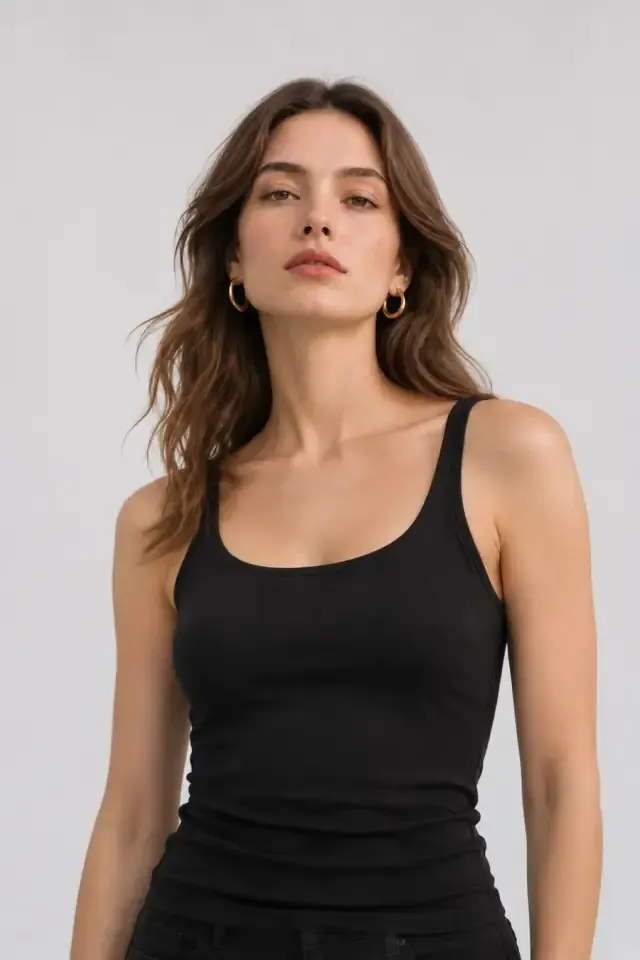
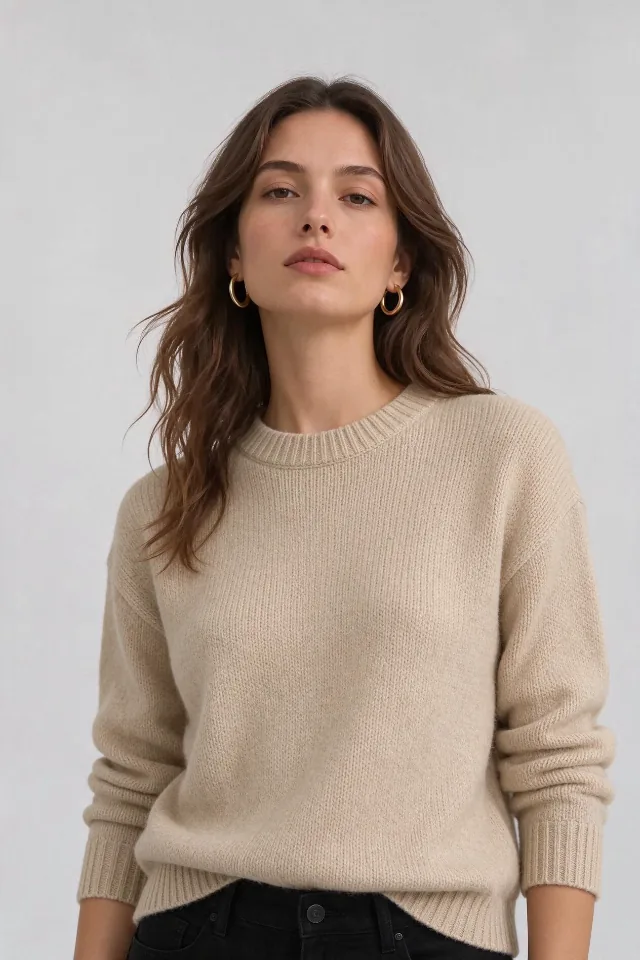
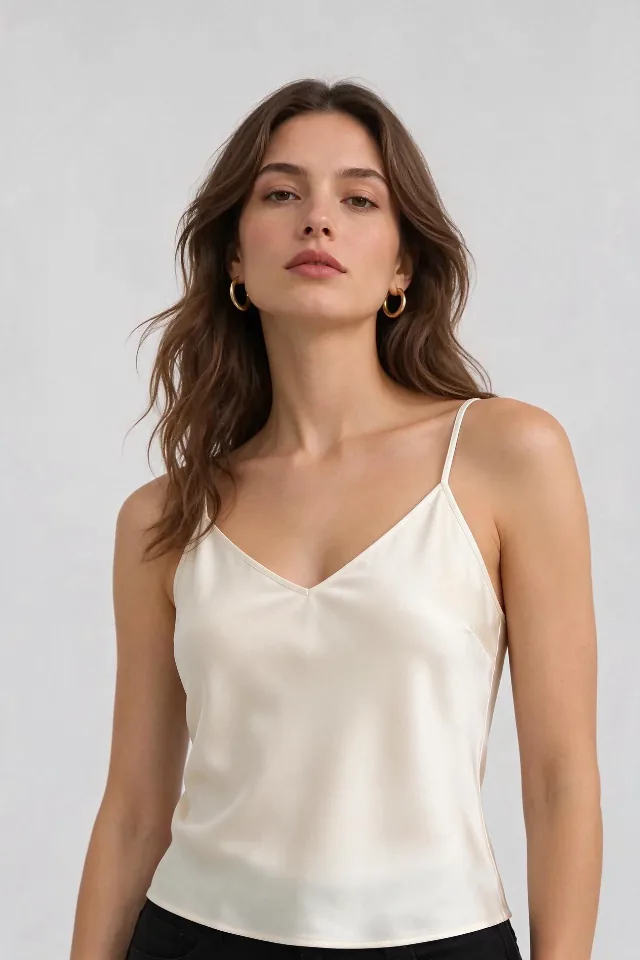
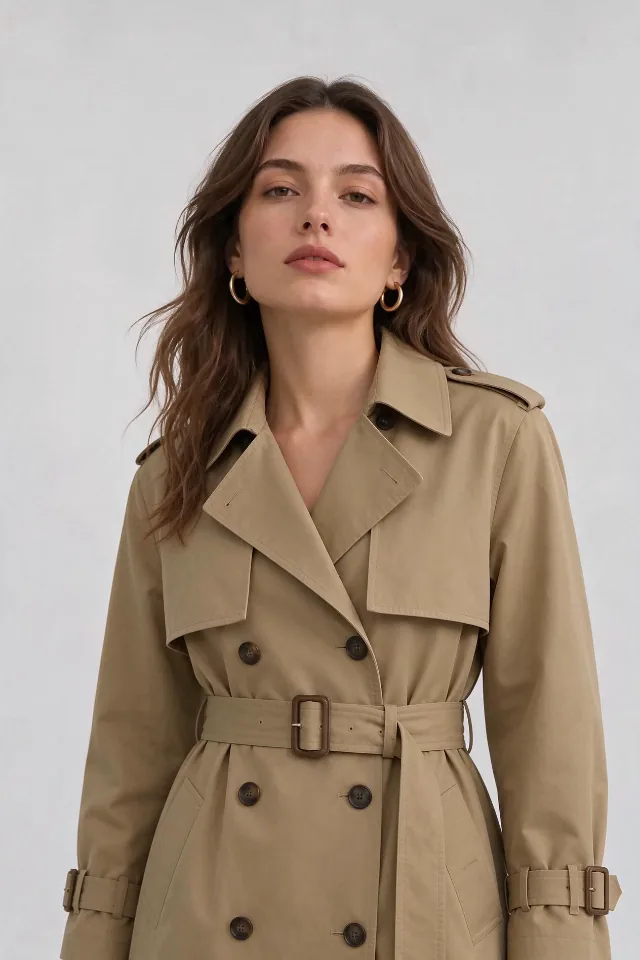
On 27 November 2026 we changed the top on the same portrait three times in Tavlum's Try On mode, each with a catalog garment image as the reference and no text prompt. Each run used 1 credit and took 20 to 27 seconds of generation time.
- Beige knit sweater replacing a black tank top.
- White satin camisole replacing the same tank top.
- Khaki trench coat worn over the original outfit.
In all three results the face, hair, gold hoop earrings and grey background stayed close to the original. The garments followed their reference images, including the trench coat's belt and buttons and the camisole's thin straps. The places to check are the edges where fabric meets skin or hair: strands of hair over the shoulders were redrawn around the new collars, and the sweater's sleeves changed how the arms look. These are normal for a clothing edit, but they are exactly where you should look before you share the image.
Two ways to change clothes without changing your face
- Try On with a garment image. Upload your photo and a clear image of the garment: a product photo, a flat lay or a store screenshot. This replaces a whole garment or builds a full look. On the web Studio canvas you can connect up to four items to one photo, one per category, and generate them together for 1 credit.
- Local Edit for a single area. Paint over only the part you want to change, such as the sleeves, the collar or the color of a shirt, and describe the change. Everything outside the painted area is meant to stay the same, which keeps the face untouched even more strictly.
A checklist for keeping your face consistent
- Use even, front-facing light. Hard shadows and strong backlight make the face more likely to soften or shift.
- Keep hair, hands and bag straps away from the collar. The model then does not have to guess where skin ends and fabric begins.
- Pick a sharp photo at a reasonable size. Blurry or tiny faces leave the model less to keep.
- Use a clear garment image. One item per image on a plain background works best. Busy lifestyle photos can pull extra details into the result.
- Compare before you save. Drag the slider over the eyes, mouth, teeth and jewelry. If something drifted, generate again or switch to Local Edit for that area.
Why the reference image matters
In our tests the garment came out the way its reference image looked, not the way its name read. One catalog item labeled as a blazer was actually a trench coat in its image, and the result showed a trench coat. When you choose a garment, judge the picture, not the label, and pick the image that shows the item you actually want.
When this is useful
- Trying a new top or jacket on yourself before buying online.
- Showing a product on a model photo for a small clothing brand, where the model's face must stay recognizable from image to image.
- Fixing the outfit in a photo you otherwise like, without retaking it.
- Checking a color or style for a uniform or a team outfit.
Only edit photos you own or have permission to use, and do not present an edited photo as a real product photograph.
Honest limits
An AI preview shows style and color, not fit. It does not measure your body, so it cannot tell whether a size will fit. Small text, logos, prints and fine textures can change. Hair and skin at the edges of the garment are redrawn. For the strictest face lock, use Local Edit and keep the painted area below the neckline.
About these examples
The examples were generated in the Tavlum web Studio from one of Tavlum's own model photos and catalog garment images, on an account with a paid plan, so they carry no watermark. Free accounts receive the same edit in standard quality with a watermark. Each result's job ID is recorded so it can be traced back to its run. Each standard photo generation uses 1 credit, and failed generations are refunded automatically.