 Tavlum
Why preview it first
Hair colour changes how your skin, eyes and even your clothes look. A shade that looks great on someone else can wash you out, and a big change such as going platinum takes several salon visits and a lot of aftercare. That makes it worth seeing first.
A hair colour preview keeps your cut and length the same and changes only the colour, so you are comparing shades, not hairstyles.
Tavlum changes only what you describe and is meant to leave the rest of the photo as it was, so the comparison shows the change rather than a different photo.
What we tested
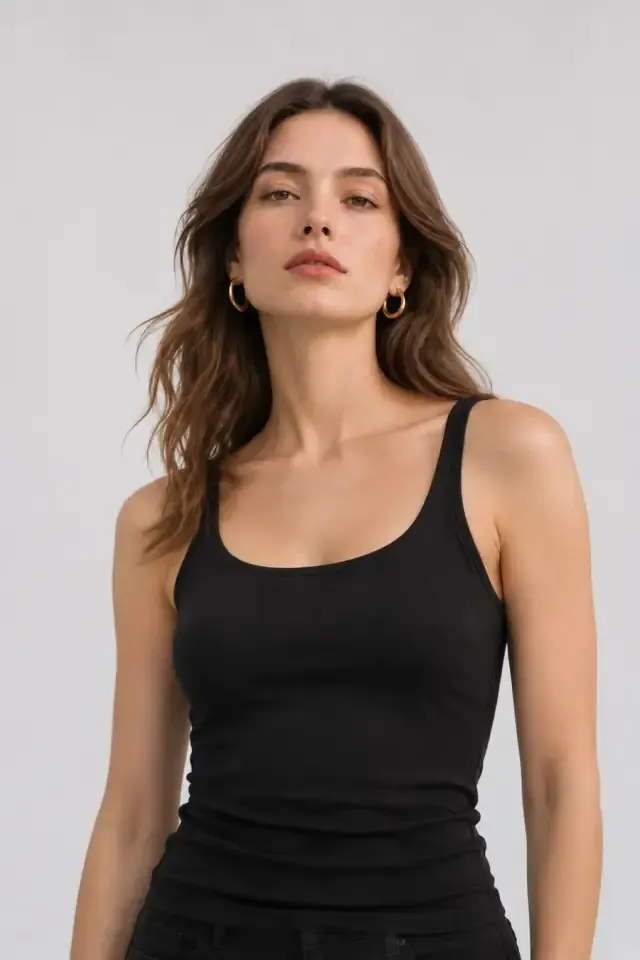
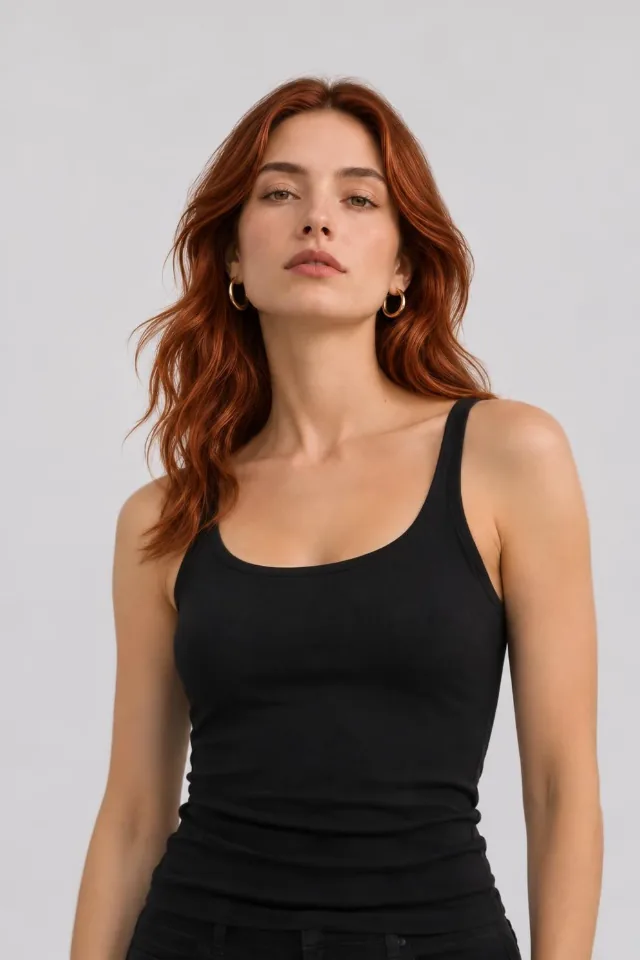
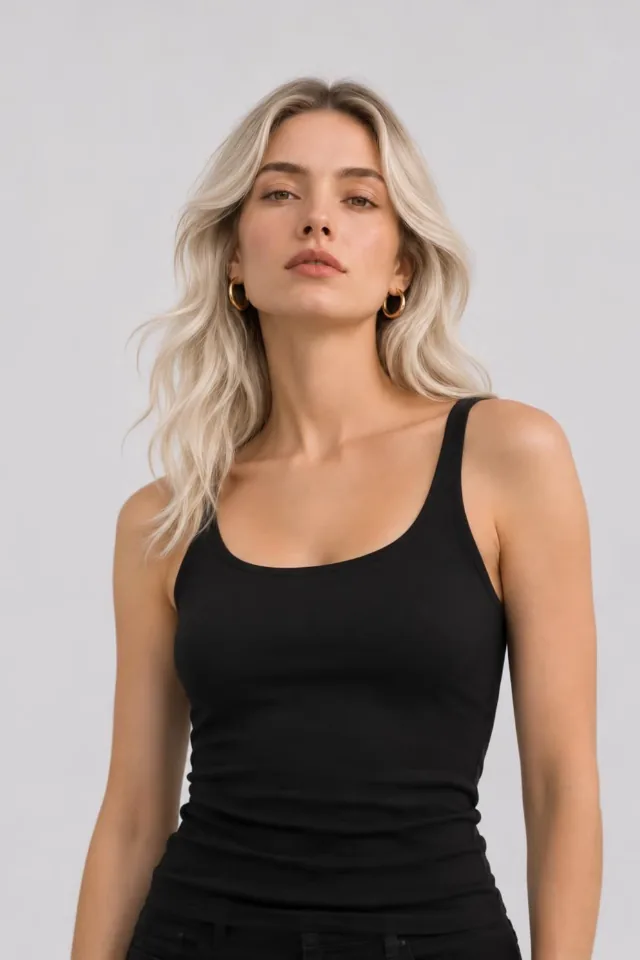
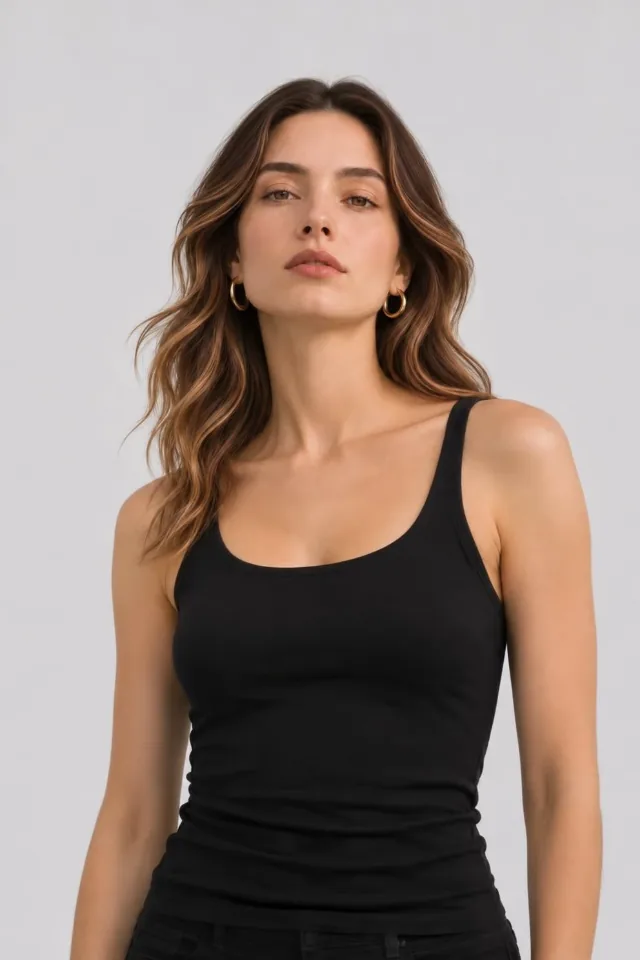
We ran three prompts on the same front-facing portrait on 27 Nov 2026, using Tavlum's Free Edit with a short text description and no reference image. Each run used 1 credit.
- Copper red: a rich, warm copper red through the whole head.
- Platinum blonde: icy platinum blonde with slightly darker roots.
- Caramel balayage: a chocolate brown base with soft caramel highlights through the lengths.
In all three results her face, skin, expression, pose and the grey background stayed close to the original. Her haircut, waves and length stayed close to the original in each run, and only the colour changed. Copper and platinum were the most dramatic and changed how warm her skin looked. The balayage was the most natural-looking change. Colours on screen depend on your display, so treat the exact shade as a guide. Each result above sits next to its original photo, so you can compare the details for yourself before trying your own.
How to do it with your own photo
- Upload a clear, front-facing photo. Face the camera in soft, even light, with your face, hairline and shoulders visible. A plain wall behind you keeps edges clean.
- Describe the change. Name the colour and where it goes, for example "all-over copper red", "platinum blonde with darker roots" or "caramel balayage through the lengths". Add "keep the same haircut" to stop the length from changing.
- Add a reference photo if you have one. A product or inspiration photo helps the AI match a specific item. Make sure you have the right to use it.
- Generate and compare. Drag the slider over the result to see exactly what changed. Change one detail at a time and generate again, so you can see what each choice does.
- Save the ones you like. Keep your favourite results side by side in your history and use them to decide what to buy, book or try in person.
Getting a realistic result
- Keep your face straight to the camera. A tilted head or strong side angle makes the result less even.
- Use soft daylight. Harsh shadows and backlight hide edges and change colours.
- Pull hair away from the area you are changing, unless the change is the hair itself.
- Avoid busy backgrounds. Thin edges stay crisp against a plain wall.
- Repeat the run. Two runs with the same description can differ a little, so generate again if one detail looks off.
Talking to your stylist
Bring two or three saved results to your appointment rather than a single photo. Seeing a few options side by side makes it easier to explain what you like and what you do not, for example the length but not the fringe, or the colour but a softer version of it.
Ask your stylist how your hair type, density and natural texture will change the result, how long the style takes to do each morning and how often it needs a trim or a colour refresh. A preview shows the end result on a good day; your stylist can tell you what it takes to keep it looking that way. If you are unsure, start with a smaller change and go further next time.
Hair colours worth comparing
- Warm shades: Copper, auburn and honey blonde add warmth and suit golden or olive skin.
- Cool shades: Ash blonde, platinum and cool brown calm down redness in the skin.
- Balayage and highlights: Softer, lower-maintenance ways to add light without a full colour change.
- Dark to light: Big lightening jobs take several sessions, so preview the end result before you start.
- Fashion colours: Pastels and bright colours fade fast. Seeing them first saves an expensive experiment.
Who this helps
- Anyone planning a colour change who wants to see it first.
- People choosing between two or three shades.
- Colourists showing a client a few options.
- People who want to try a bold colour without committing.
What a preview can and cannot do
An AI preview redraws part of your photo. It is meant to keep everything else the same, but small details near the change, such as stray hairs, jewellery or the edge of clothing, can shift a little. It does not measure you, so it cannot tell you about size, fit or comfort. Use it to compare looks and narrow down choices, then check the real thing. If a result looks wrong, generate again or change one word in your description; failed generations are refunded automatically.
Check the real thing before you buy
A preview shows how a colour looks with your face. It cannot tell you whether your hair can reach that shade in one session, how much it will cost or how long it will last. Bleaching and big colour changes can damage hair. Ask a colourist for a strand test and an honest plan before you start.
AI previews are illustrative and may alter small details. They do not determine size or fit.