 Tavlum
Why preview it first
Green cabinets are a popular way to add colour to a kitchen without going as dark as black or navy. But green covers a wide range, from soft sage to deep forest, and each one changes how your countertop, floor and hardware look.
Seeing a few greens on a photo of your own kitchen helps you choose a shade before you buy paint.
Tavlum changes only what you describe and is meant to leave the rest of the photo as it was, so the comparison shows the change rather than a different photo.
What we tested
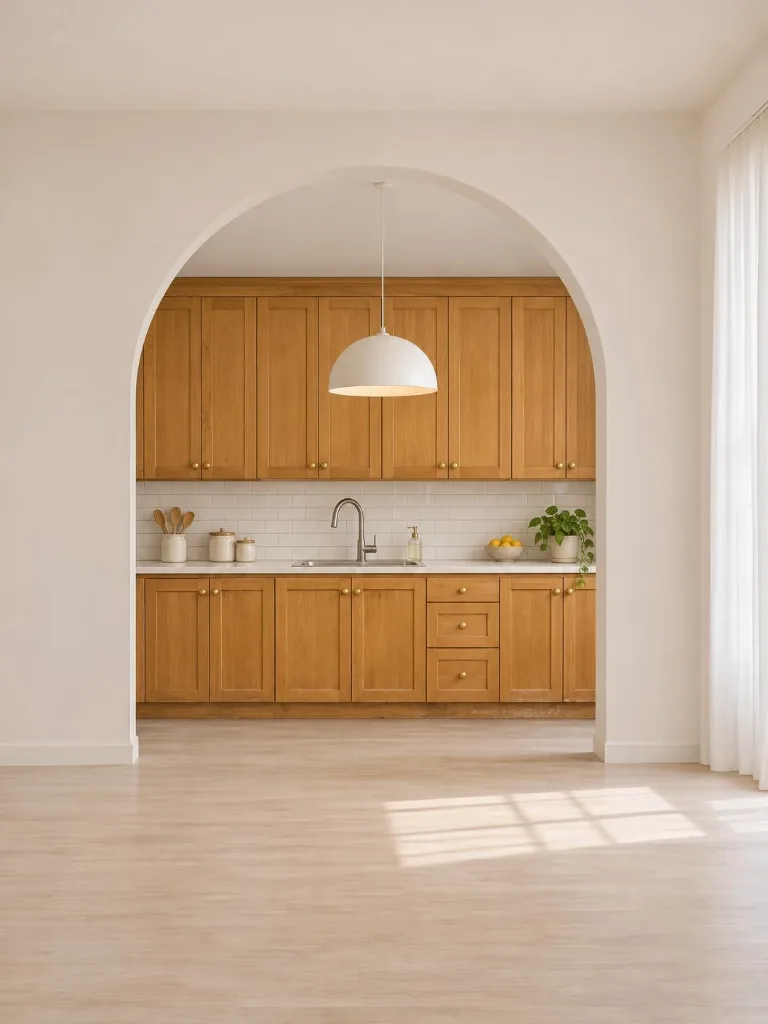
We ran three prompts on a photo of a real kitchen on 27 Nov 2026, using Tavlum's Free Edit with a short text description and no reference image. Each run used 1 credit.
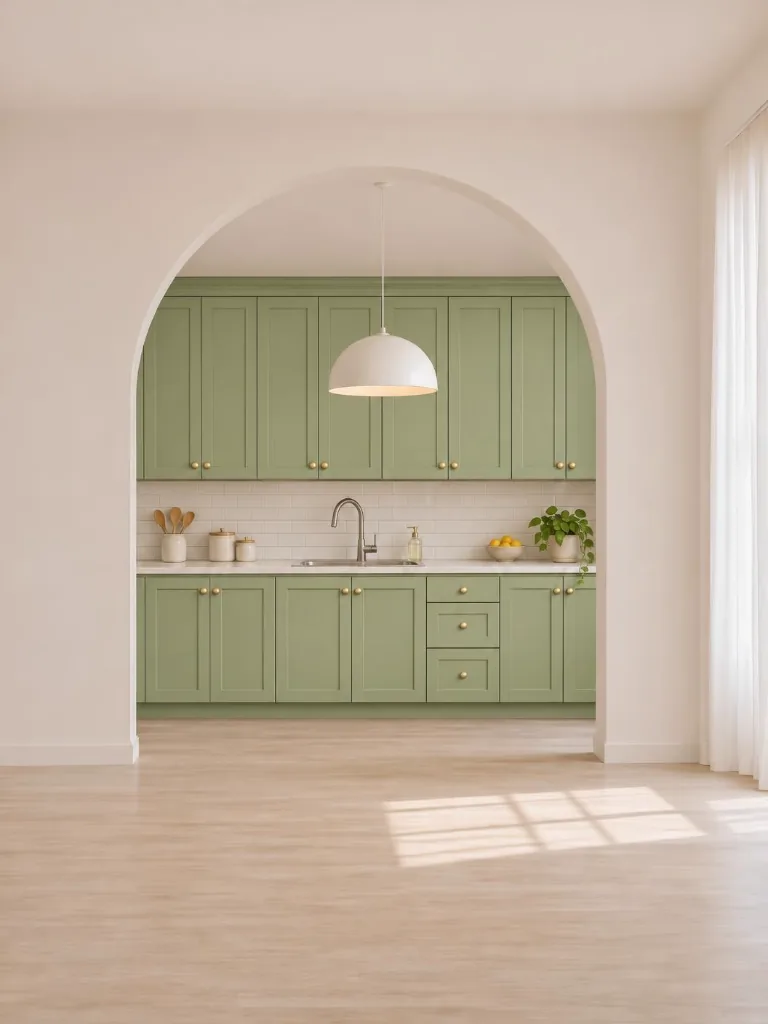
- Sage green: soft matte sage green with brushed brass knobs.
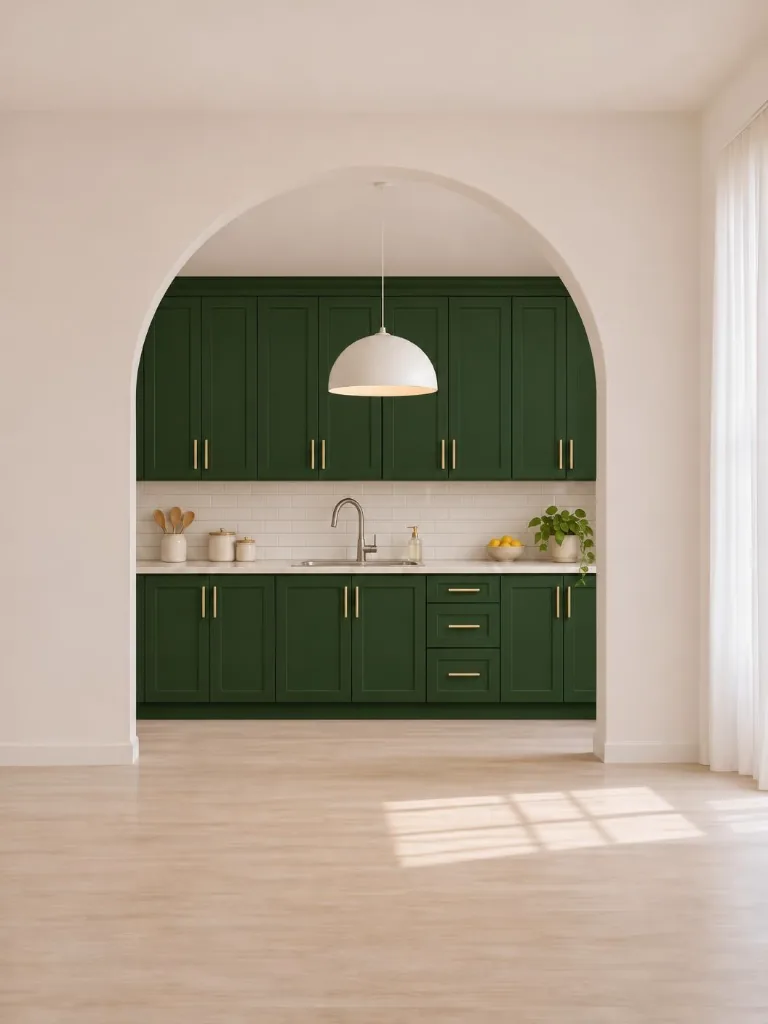
- Forest green: deep matte forest green with brushed brass pulls.
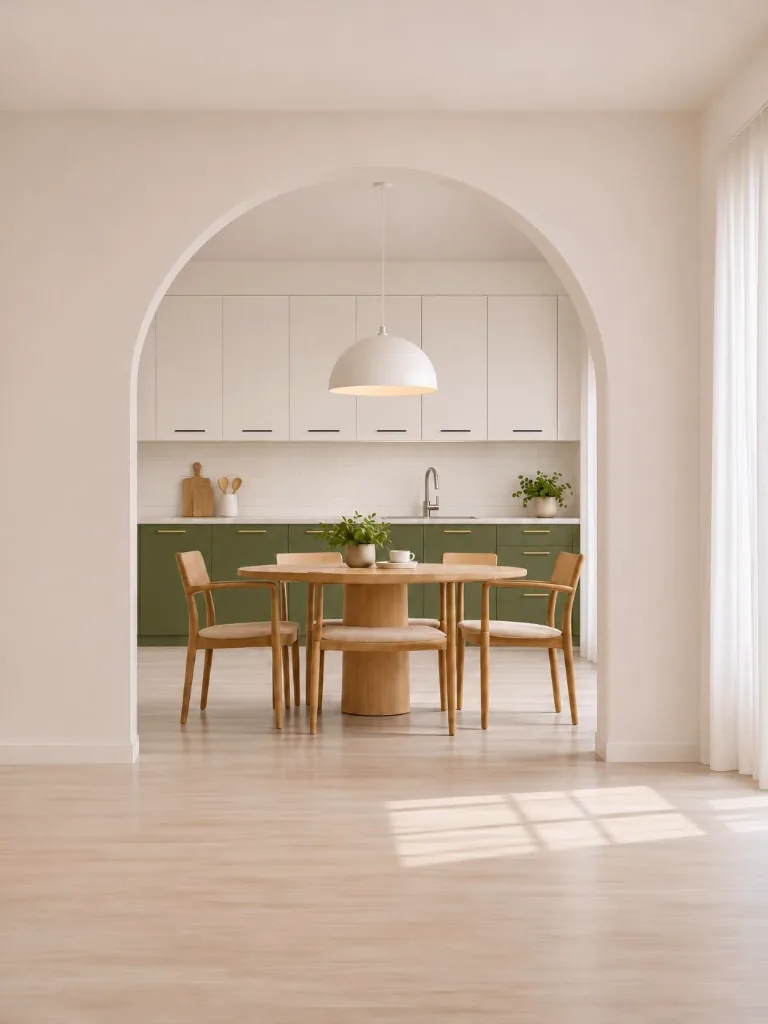
- Two-tone olive: white uppers with olive green lowers and brass pulls.
In all three results the parts we asked to keep stayed close to the original photo. The countertop, backsplash, sink and floor kept their shape and position, and the cabinet doors kept their panel shapes. Sage felt light and calm, forest green felt rich and cosy, and the two-tone olive kept the room bright. Handles are drawn by the AI, so treat their size and position as an estimate. Each result above sits next to its original photo, so you can compare the details for yourself before trying your own.
How to do it with your own photo
- Take a straight-on photo of the room. Stand back far enough to fit the whole area you want to change, and shoot in daylight with the lights you normally use switched on.
- Describe the change. Say which cabinets change, the shade and finish and the hardware, for example "paint all the cabinets matte sage green with brushed brass knobs".
- Say what must stay the same. Naming the furniture, floor, window and walls you want to keep helps the result change only what you asked for.
- Generate and compare. Drag the slider over the result to see exactly what changed. Change one thing at a time so you can see the effect of each choice.
- Narrow it down to real samples. Use your favourite preview to pick two or three real samples, swatches or products to check in the room before you buy.
Getting a realistic result
- Use natural daylight. Strong yellow or blue artificial light shifts how colours look in the result.
- Shoot straight on. A steep angle makes surfaces and patterns look uneven.
- Tidy the area first. Fewer objects in front of what you are changing means cleaner edges.
- Keep reflections low. Glare from windows on shiny surfaces can turn into patches.
- Repeat the run. Two runs with the same description can differ a little, so generate again if one detail looks off.
Planning the change
Start with the biggest surface you want to change, such as the walls, floor or sofa, and keep the rest of the room the same. Once you like that result, save it and use it as the starting point for the next change, so you can build up a whole new look one step at a time.
Keep the light in mind. A room photographed on a bright afternoon looks very different at night, and colours and materials change with it. If you can, take two photos at different times of day and run the same change on both. Then compare the results with real samples, swatches or products in the room before you buy anything.
Green cabinet ideas worth comparing
- Sage: Soft and grey-green, easy to live with.
- Forest and emerald: Deep and rich, good with brass.
- Olive: Warm and earthy.
- Two-tone: Green lowers with white uppers keep a kitchen bright.
- Hardware: Brass feels warm, black feels modern, chrome feels cool.
Who this helps
- Homeowners planning to paint cabinets.
- Anyone choosing between a few greens.
- Designers showing a client options.
- Renters imagining a kitchen update.
What a preview can and cannot do
An AI preview redraws part of your photo. It is meant to keep everything else the same, but small details near the change, such as edges, shadows and reflections, can shift a little. It does not measure your room, so it cannot tell you about quantities, sizes or cost. Use it to compare looks and narrow down choices, then check real samples. If a result looks wrong, generate again or change one word in your description; failed generations are refunded automatically.
Check the real thing before you buy
A preview approximates a green under the light in your photo. It is not a calibrated paint colour and does not match a brand or code. Paint sample boards, put them against your cabinets and counters, and check them in different light before buying.
AI previews are illustrative and may alter small details. They do not determine size or fit.